
I get asked this question quite often: “How do you maintain your cold email deliverability?”
It comes up in conversations with marketers, sales teams, and people running cold outreach campaigns. And I get why. You can have a well-researched prospect list, solid email copy, and a great offer.
None of it matters if your emails keep landing in spam.
Maintaining good deliverability takes more than warming up your inboxes. Your email infrastructure and sender reputation play a part. So do authentication, sending volume, and list quality.
So, I thought I’d share what actually matters when it comes to cold email deliverability.
I’ll also cover the mistakes you should avoid and the practices that help keep your emails landing in the inbox.
Cold email deliverability is the percentage of your cold emails that land in the prospect's inbox instead of the spam folder.
For example, if 85 out of 100 emails reach the inbox, your deliverability rate is 85%.
Cold email faces stricter checks than a newsletter because the prospect never asked to hear from you.
Gmail and Outlook decide where each cold email goes by looking at your domain setup and your sender reputation. They also look at how people react to your emails.
Deliverability affects every other number in your campaign. If half of your emails land in spam, half of your prospects never see your offer.
The damage also grows over time. A domain that lands in spam this week gets fewer replies, so it looks worse to email providers next week.
Delivery and deliverability sound similar, but they measure two different things. Delivery means the receiving server accepted your email. Deliverability means your email reached the prospect’s inbox instead of the spam folder.
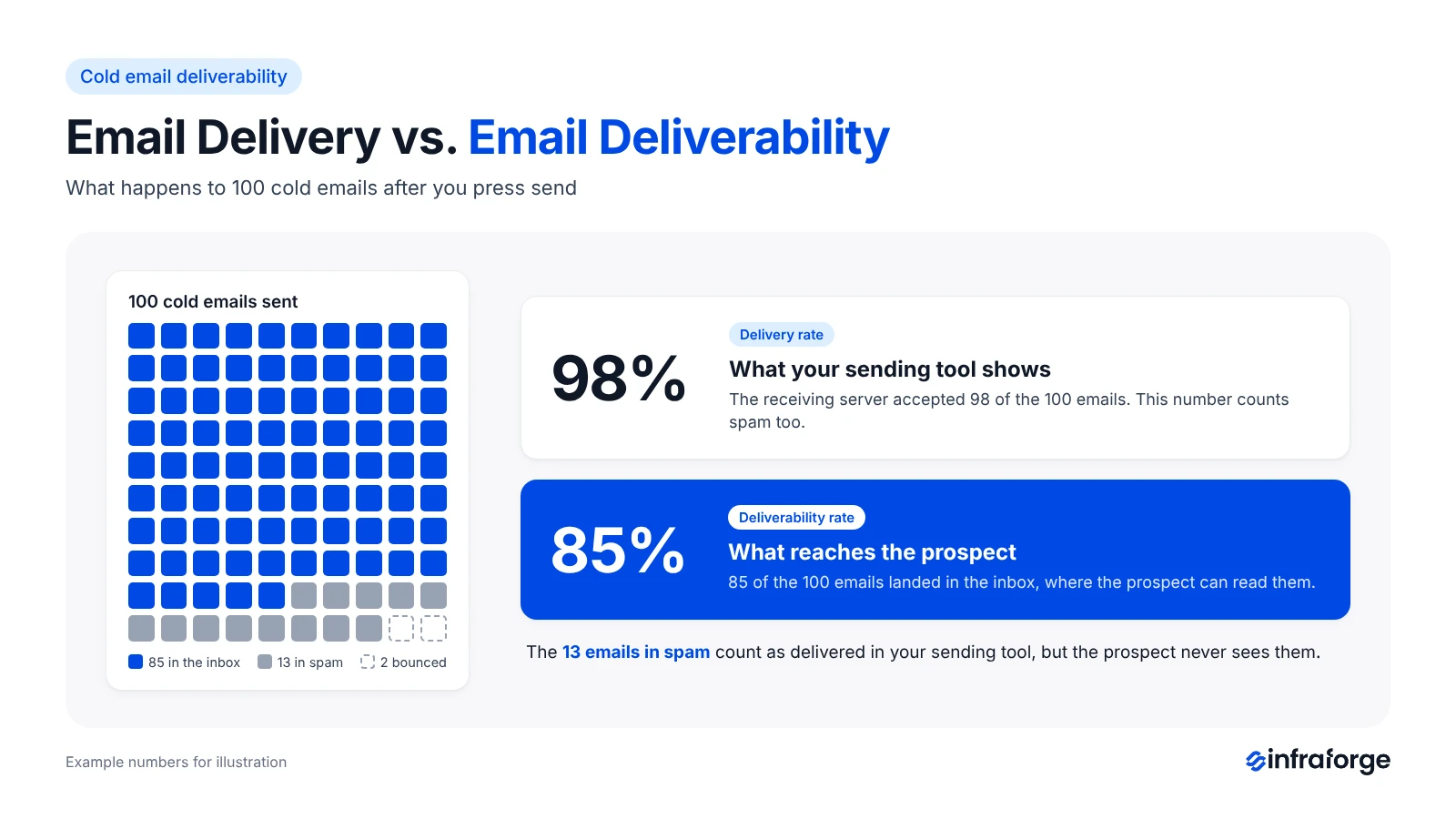
The difference matters because your sending tool reports delivery, not inbox placement. A campaign can show a 100% delivery rate while many emails land in spam. That’s why I never judge a campaign by its delivery rate alone.
If you ignore this gap, your campaign could lose replies for weeks. An inbox placement test helps you spot the problem. I’ll explain how to run one later in this guide.
The three major email providers now have clear rules for senders, and enforcement became stricter in 2025. Outlook began rejecting non-compliant emails from high-volume senders in May 2025. Gmail followed with stricter enforcement in November 2025.
Gmail and Yahoo require bulk senders to include a one-click unsubscribe option in marketing emails. Yahoo also requires them to process unsubscribe requests within two days.
A regular unsubscribe link in the email body is not enough. Your sending tool must support one-click unsubscribes to meet this requirement.
You may never send 5,000 emails a day from a single cold email domain, but I still follow Google's sender guidelines for every domain I set up.
Proper email authentication matters because Google Workspace and Microsoft 365 also check incoming emails for authentication and spam signals.
Here is an explanation on how cold email deliverability works.
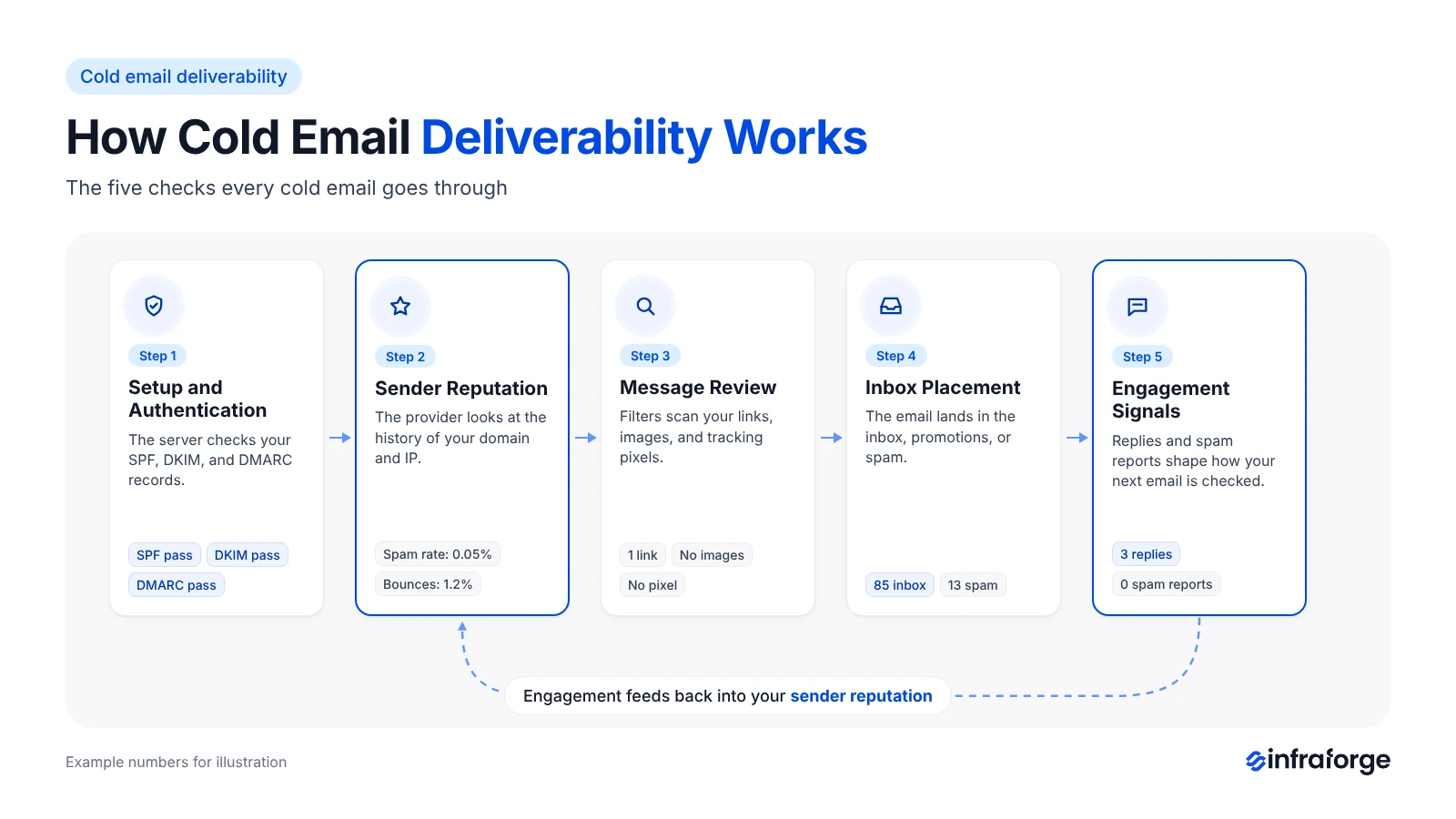
The first check happens when your email reaches the receiving server. The server looks up your domain's SPF, DKIM, and DMARC records to confirm that you have permission to send from that domain. If the records are missing or broken, the server can reject the email right away.
This check happens before anyone looks at your copy. So whenever a campaign struggles, I fix DNS problems first.
Next, the provider looks at the reputation of your domain and sends an IP address. It checks your sending history and bounce rate, along with how many people have marked your emails as spam. A domain with a clean history gets more trust than a new domain or one with past complaints.
Reputation builds slowly and drops quickly. A few weeks of steady sending can earn trust, while a single bad campaign can undo it in a day.
The spam filter then reviews the email itself. It looks at your links and images, as well as any attachments and tracking pixels. It also checks if the same text is going out from many mailboxes at once.
Content rarely decides placement on its own. It matters most when your reputation is weak, because a risky link or a tracking pixel can push the email into spam.
Based on these checks, the provider decides where the email goes. It can land in the primary inbox, the promotions tab, or the spam folder. In some cases, the provider rejects it and sends back a bounce.
Your sending tool cannot see this decision. It knows that the receiving server accepted the email, but it cannot tell you where the email landed. I use placement tests to find that out.
The process continues after the email lands. When prospects reply to your email or move it out of spam, providers learn that people want your emails. When prospects delete your emails or report them, providers learn the opposite, and your next emails face stricter checks.
Engagement and reputation feed each other. Good engagement improves your reputation, and a better reputation gets your next emails into the inbox. Poor engagement pulls both down.
Knowing these four factors can help you find problems early and protect your deliverability.
SPF, DKIM, and DMARC help receiving servers confirm that an email comes from your domain. If these records are missing or set up wrong, Gmail and Outlook may reject your emails or send them to spam.
Small setup mistakes can cause big problems. For example, publishing multiple SPF records can break SPF authentication. Enabling DKIM in your sending tool is not enough, because you must also publish the required DNS record. Check every record before starting a cold email campaign.
Email providers use your domain and IP reputation to help decide if your emails belong in the inbox. High bounce rates, spam complaints, and sudden increases in sending volume can damage that reputation.
New domains have little or no sending history, so you need to build trust over time. Your sending IP matters, too. With a shared IP, other senders' activity can affect its reputation. With a dedicated IP, your own sending decides most of its reputation.
Sudden spikes in volume are a common cause of damage. A mailbox that sends 20 emails one day and 300 the next may face more filtering or get slowed down. Teams often run into this when they launch large campaigns from new mailboxes without building up their volume first.
Spam complaints hurt your reputation the most. When recipients mark your email as spam, providers receive a direct signal that people do not want your messages. Gmail recommends keeping the user-reported spam rate below 0.1% and avoiding rates of 0.3% or higher.
A hard bounce happens when your email cannot reach an address because the address is invalid or does not exist. Too many hard bounces tell providers that your list is poor, and that hurts your sender reputation.
A few bounces are normal, but any increase is worth checking. A bounce rate of 5% or more is a serious warning sign. Verify email addresses before sending and remove invalid contacts. Stop sending to addresses that repeatedly bounce.
Your email content can affect deliverability, even when your technical setup is correct. Several links and URL shorteners can make spam filters suspicious, and so can unknown domains and unexpected attachments.
Open tracking is another thing to think about. It adds a small hidden image to your email, and spam filters may treat that image as a sign of marketing email. Open rates are also unreliable. Some email apps block the image, and some security tools open emails automatically.
Relevance matters as well. If your messages reach the wrong audience or offer little value, recipients may ignore or delete them. Aim for accurate targeting, relevant messaging, and a clear reason for contacting each prospect.
I split deliverability work into three stages. The first stage happens before you send a single email, the second happens while campaigns run, and the third happens after each campaign.
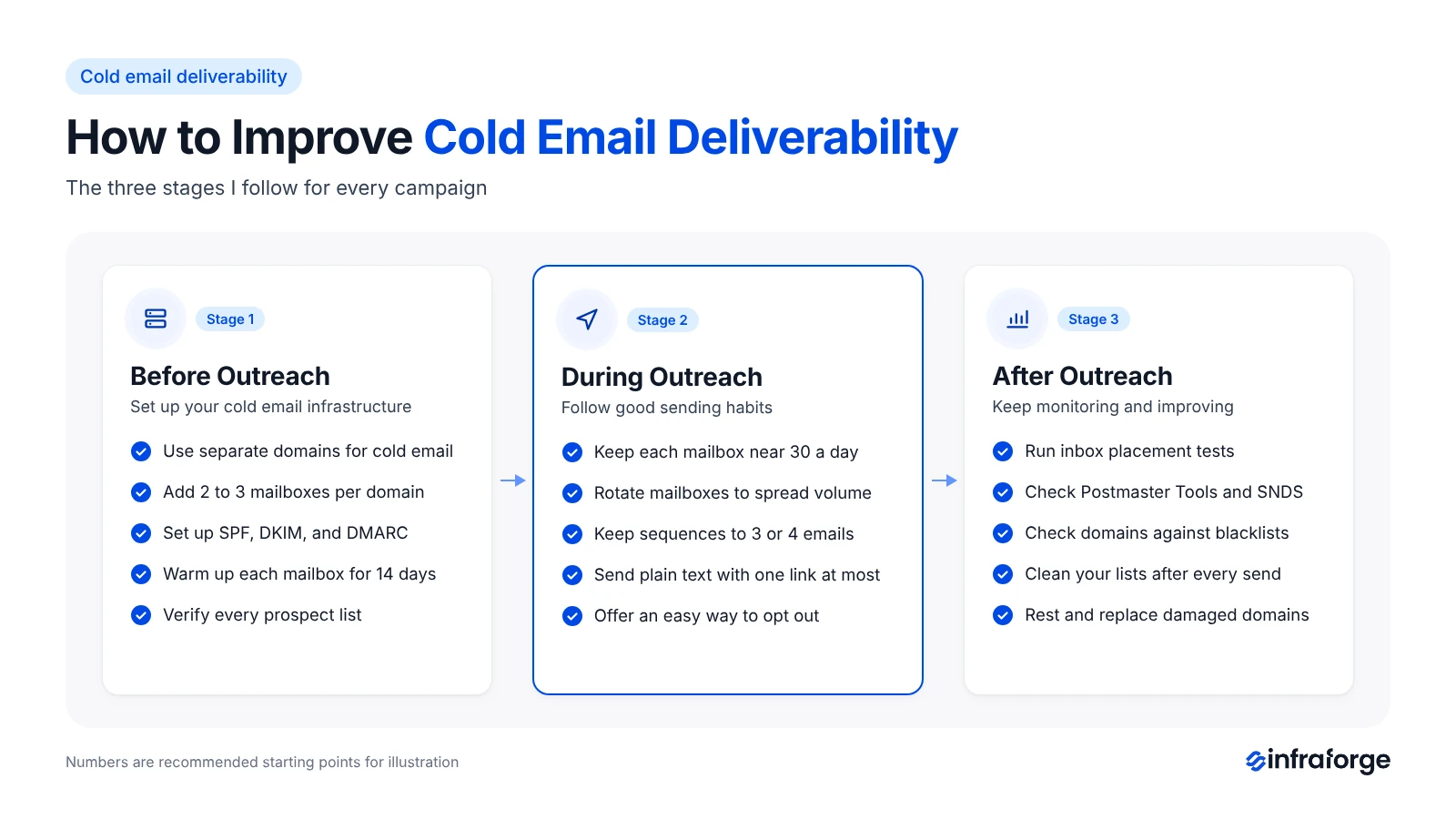
Cold email infrastructure includes the domains, mailboxes, and servers used to send emails. A poor setup can hurt deliverability, so get the basics right before launching a campaign.
Never send cold emails from the company's main domain. It handles important messages, such as invoices, support emails, and contracts. A spam problem on the main domain could affect these communications, too.
Instead, buy a few domains that resemble the brand. For example, if the company uses acme.com, you could use getacme.com or tryacme.com for cold email. Choose .com domains where possible. Point each domain to the main website so prospects can verify the business.
Create two or three mailboxes on each domain. Use a person's name for each mailbox, such as [email protected], and add a profile photo. Named email addresses look more personal than generic addresses such as sales@ or info@.
To calculate how many mailboxes you need, divide the daily sending target by 30 emails per mailbox. Then divide the mailbox count by three to estimate the number of domains needed.
For example, sending 1,500 cold emails a day requires 50 mailboxes across approximately 17 domains.
Every sending domain needs SPF, DKIM, and DMARC records. Keep the SPF record within the 10-DNS-lookup limit, publish a valid DKIM key, and configure a DMARC policy of p=none or stricter.
The sending domain must also align with the domain authenticated by SPF or DKIM. This is called domain alignment. High-volume senders must also meet Outlook's email authentication requirements, including passing SPF and DKIM checks.
A newly registered domain has no sending history. Allow around two weeks between registering a domain and starting cold outreach.
Use this time to configure DNS records and warm up the mailboxes. Gradually increasing sending activity helps establish a sending history before the campaign begins.
Shared IPs cost less and are easier to set up. However, other senders using the same IP can affect its reputation.
Dedicated IPs give you more control because they are not shared with other senders. They cost more, and their reputation depends on your own sending practices.
Using multiple email service providers (ESPs) is another option. Many B2B prospects use Google Workspace or Microsoft 365.
ESP matching means sending from the same provider the prospect uses, which may help in some cases but does not guarantee inbox placement. An ESP checker can identify the provider associated with each domain on your prospect list.
Using multiple providers also spreads risk. If one provider experiences deliverability problems, your entire campaign does not have to rely on it.
A new mailbox has no sending history, so inbox providers have little data to assess its activity. Warmup helps establish a sending history before cold outreach begins.
During warmup, the mailbox exchanges emails with other mailboxes in a warmup network. These accounts may open emails and reply to them. Warmup volume increases gradually over about 14 days.
Keep warmup running after the campaign starts and monitor sending volume and deliverability. Warmup alone cannot guarantee inbox placement.
Run every prospect list through an email verifier before adding it to a sequence. The verifier checks email formats and uses available signals to assess whether an address can receive messages.
Catch-all domains need extra care. They accept emails sent to different addresses, making it difficult for a verifier to confirm whether a specific mailbox exists. Send to these addresses in small batches and monitor bounce rates closely.
A good email setup can still fail if the sales team sends emails carelessly. These practices help SDRs manage sending volume, protect domain reputation, and maintain inbox placement once a campaign goes live.
Infraforge recommends around 30 emails per mailbox per day, with 100 as the upper limit. For a newly warmed mailbox, start with 10–15 emails a day and increase the volume gradually while monitoring bounce rates.
When you need more volume, add more mailboxes and domains instead of pushing a single mailbox too hard. Sending 200 cold emails a day from one mailbox can put its reputation at risk.
Google Workspace allows up to 2,000 messages a day for eligible accounts, while trial accounts have a lower limit of 500. These are provider limits, not recommended targets for cold email. Staying within them does not guarantee inbox placement.
Keep cold email volume around 30 emails per mailbox per day and monitor bounce rates, spam complaints, and inbox placement to catch problems early.
Mailbox rotation distributes a campaign across multiple mailboxes, keeping the daily volume manageable for each one. Space emails a few minutes apart and schedule them during the prospect's working hours.
Sending 30 emails in one minute can look automated, even when every email is personalized. Spreading emails throughout the day creates a more consistent sending pattern.
Three or four emails are enough for most offers. Every follow-up to someone who has not replied creates another chance of getting marked as spam, especially when the messages repeat the same pitch.
Keep each follow-up relevant and stop the sequence as soon as a prospect replies. Include a clear way to opt out, too. A line such as “Not the right person? Let me know, and I'll stop emailing you” gives the recipient an alternative to marking the message as spam.
Send the first email in plain text, with no images and no more than one link. Turn off open tracking whenever your sending tool allows it.
If you need click tracking later in the sequence, use a custom tracking domain because a shared tracking domain can be affected by the reputation of other senders who use it.
Variation also matters when sending from multiple mailboxes. If 30 mailboxes send identical emails, spam filters may detect the repeated pattern.
Spintax varies words and phrases across emails, while AI personalization creates a relevant opening line for each prospect. Keep these variations natural and make sure every email is relevant to the person receiving it.
Deliverability can change from week to week, so I check it after every campaign. A domain that reached the inbox last month may start landing in spam without warning.
An inbox placement test sends your email to test mailboxes at Gmail, Outlook, and other providers. It shows how many emails reach the inbox, the Promotions tab, or spam. I run a test before each new campaign using the actual email copy and sending mailbox. Testing with different copies may give you results that don't reflect the campaign.
Google Postmaster Tools is a free dashboard that shows your Gmail spam rate and domain compliance status. Microsoft SNDS provides similar insights into how Outlook.com views your sending IPs.
I also check every domain and IP against public blacklists once a week. If an IP gets listed, follow this guide on how to fix IP reputation issues.
Email lists become outdated over time. People change jobs, companies switch domains, and mailboxes get deactivated. After every campaign, I remove hard bounces and contacts who have unsubscribed. I also re-verify active lists about once a month.
I remove role-based addresses such as info@ and support@ because these shared inboxes may not reach the specific person I want to contact.
Campaign averages can hide problems. Nine domains may perform well while one sends emails to spam, yet the overall results may still look fine.
I check bounce rates, replies, and spam complaints for each mailbox and domain. That helps me spot problems before they affect the rest of the campaign.
When a domain starts landing in spam, I pause its campaigns and continue warmup. Then I check its DNS records, blacklist status, and email lists to find the cause.
Once an inbox placement test shows improvement, I restart sending at half the previous volume and increase it gradually.
If the domain continues to land in spam after three to four weeks, I consider retiring it and moving campaigns to a fresh, warmed domain. I also keep a few spare domains warm so a problem with one domain doesn't stop the entire campaign.
Google provides additional email delivery support to eligible bulk senders when their spam rate remains below 0.3% for seven consecutive days.
I track these five numbers for every campaign and every sending domain. Each number tells me something different, so I look at them together.
These are the mistakes I see most often when I review a cold email setup, along with how I avoid each one.
Good cold email deliverability depends on correct DNS records, warmed mailboxes, clean email lists, and controlled sending volumes. Test inbox placement regularly to catch problems before they affect your replies.
Check your domains and mailboxes every week. Fix missing DNS records, remove invalid email addresses, and reduce sending volume if bounce rates increase.
Infraforge helps you set up domains and mailboxes on dedicated servers with automated DNS configuration and pre-warmed mailboxes.
Sign up for Infraforge to set up your cold email infrastructure.
Cold email deliverability is the percentage of your cold emails that reach the prospect's inbox instead of the spam folder. It depends on your domain setup and sender reputation. List quality, sending volume, and email content also affect it.
Cold email deliverability is important because an email in spam never gets read. Even a strong list and a good offer will not bring replies if your emails do not reach the inbox. Poor deliverability can also damage your domains, which makes every future campaign harder. Fixing a burned domain takes weeks, so protecting it from the start costs far less time.
I recommend about 30 cold emails per mailbox per day, with 100 as the upper limit. Your total daily volume depends on how many mailboxes you run. For example, 50 mailboxes sending 30 emails each add up to 1,500 cold emails a day. New mailboxes should start lower, at 10 to 15 emails a day, and grow slowly after warmup.
Infraforge gives you private email infrastructure that is ready for cold email from the start. It adds DNS records automatically, and its pre-warmed mailboxes skip the two-week warmup. Agencies and high-volume senders can also buy extra dedicated IPs and manage mailboxes through an API.