SMTP errors can disrupt email delivery, especially in high-volume campaigns like cold outreach. Using a complete stack to 10x your outreach can help manage these complexities. These errors often stem from authentication failures, connection issues, relay access denials, TLS/SSL handshake problems, or spam rejections. Each error type has specific causes and solutions, ranging from tweaking credentials to updating DNS records. Here’s what you need to know:
For troubleshooting, rely on server logs, diagnostic tools (Telnet, OpenSSL), and DNS checks (nslookup, dig). Addressing these errors promptly ensures better deliverability and avoids missed opportunities.
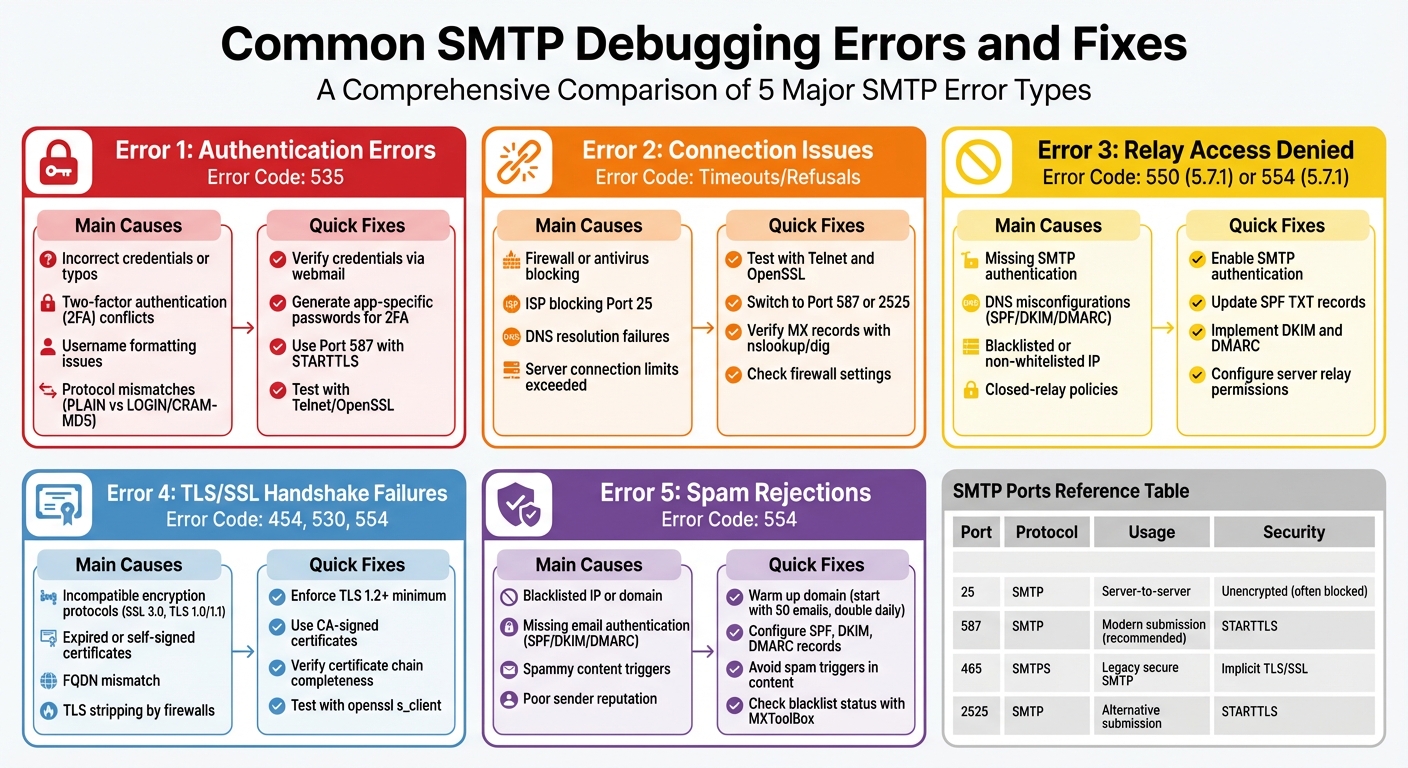
Common SMTP Errors: Codes, Causes, and Quick Fixes
Authentication errors are a common headache when dealing with SMTP issues. Error 535 happens when the SMTP server rejects your login credentials or doesn't recognize the authentication method you're using. The usual suspect? Incorrect credentials - this could mean typos, outdated passwords, or even small mistakes like extra spaces. Even a trailing space can throw everything off.
Another frequent issue is two-factor authentication (2FA). If you're using providers like Gmail, Outlook, or Yahoo with 2FA enabled, your regular password won't cut it. Instead, you'll need an app-specific password. For instance, Google stopped supporting "less secure apps" in May 2022, which broke many older SMTP setups.
Sometimes, the problem lies in username formatting. Some servers want the full email address (e.g., [email protected]), while others only need the local part (e.g., user). On top of that, protocol mismatches can occur if your client uses an unsupported authentication method like PLAIN instead of options like LOGIN or CRAM-MD5.
Error sub-codes can provide more clarity. For example:
Fixing these errors usually involves tweaking credentials, updating settings, or adjusting security configurations.
Once you've pinpointed the issue, you can take specific steps to resolve it. Start by checking your credentials via webmail. Log into your email provider's web interface to confirm your account is active and your password works. This simple step can rule out basic credential problems before you dive into more technical fixes.
If you're using 2FA, you'll need to generate an app-specific password. For Gmail, go to your Google Account's Security settings under 2-Step Verification. Create an SMTP-specific password and use it in your email client's configuration.
Don't overlook port and encryption settings. For modern email submissions, use Port 587 with STARTTLS. Avoid Port 25, as many ISPs block it to curb spam. If you're on Port 465, make sure you're using implicit SSL/TLS - not STARTTLS - since mixing encryption types can lead to authentication failures.
To test your connection, tools like Telnet or OpenSSL can be invaluable. For example, you can connect to the server (telnet smtp.example.com 587), issue an EHLO command to see supported authentication methods, and try AUTH LOGIN. Keep in mind that credentials need to be Base64-encoded (e.g., echo -n "username" | base64).
If you're managing private email infrastructure, services like Infraforge can simplify tasks like DNS setup, SPF, DKIM, and DMARC configurations. They even handle domain pre-warming, making cold outreach more efficient.
Connection issues arise when email transmissions are blocked due to timeouts or refusals. A connection timeout occurs when your email client attempts to reach the SMTP server but doesn’t get a response. On the other hand, a connection refusal happens when the server actively rejects the attempt to connect.
This can often be traced back to firewalls or anti-virus software, which tend to block SMTP traffic by default - whether they’re local or network-based.
Another frequent culprit is port blocking by ISPs. Internet service providers, including big names like Comcast, often block Port 25 to reduce spam. Brian Godiksen from SocketLabs explains:
"ISPs have been known to block port 25, this includes even large scale providers like Comcast, so be sure to try alternate ports 2525, or 587".
DNS resolution failures can also disrupt connections. If the mail server’s MX records are misconfigured or haven’t propagated correctly, your email client won’t know where to send the messages. Additionally, server-side limitations can cause errors like "421 Too many connections" when the server’s connection or queue capacity is exceeded.
Let’s explore how to identify and address these roadblocks effectively.
Start by diagnosing the network issue, then apply these solutions:
Test connectivity with Telnet and OpenSSL:
telnet [server] [port] to check connectivity. A successful connection will return a "220" service ready response. If you see "Connection refused" or experience a timeout, the issue is network-related.openssl s_client -connect [server]:[port] -starttls smtp. This helps debug handshake errors and verify SSL certificate issues.You can also use tools like ping to verify whether the server is reachable.
Try alternate ports. If Port 25 is blocked, switch to Port 587 with STARTTLS. Other options include Port 465 for implicit TLS or Port 2525.
Ensure your TLS version aligns with modern security standards to avoid compatibility problems.
Check your MX records. Use nslookup or dig to confirm that your domain has valid mail exchanger records. For example, run nslookup -type=mx [domain] and include a trailing period (e.g., fabrikam.com.) to avoid DNS suffix errors.
If these steps don’t resolve the issue, temporarily disable your local firewall or anti-virus software to test connectivity. For organizations managing large-scale email systems, tools like Infraforge can simplify DNS configuration, handle dedicated IPs, and streamline network setup, eliminating many common connection challenges.
The "Relay Access Denied" error, often labeled as SMTP 550 5.7.1 or 554 5.7.1, occurs when a mail server refuses to forward your email. This happens because the server doesn't recognize you as an authorized sender. It's a permanent error, meaning it requires manual adjustments to fix.
Matthew Whittaker, Co-founder & CTO at Suped, explains:
"A 'relaying denied' error means a server has refused to perform this relay function for a specific email... It's a security measure designed to prevent spam and unauthorized usage of mail servers."
The most common cause is missing SMTP authentication. Without valid credentials, your email client can’t prove it has permission to use the server, so the server blocks the email as a security measure against open relay abuse.
DNS misconfigurations are another frequent culprit. For instance, if your SPF records don’t include the sending IP address or if your MX records point to an incorrect server, the receiving system will reject the email. Surprisingly, over 80% of SPF failures are due to simple mistakes like syntax errors or missing records. Additionally, if the sending IP is blacklisted or not whitelisted, relay access will also be denied.
Enterprise-grade security gateways, such as Proofpoint or Barracuda, enforce strict closed-relay policies. These systems block emails from senders who aren’t explicitly registered as authorized users.
Fortunately, these errors can be addressed by tweaking email client settings and updating DNS records as outlined below.
To resolve relay access errors, start with these steps:
v=spf1 include:_spf.google.com ~all). Be mindful of the 10-lookup limit in SPF records. If you hit the limit, use SPF flattening by replacing domain includes with direct IP addresses.
p=none) to guide how email authentication failures are handled. Domains using SPF, DKIM, and DMARC together report up to a 90% drop in fraudulent emails.
smtpd_relay_restrictions parameter in the main.cf file to include permit_sasl_authenticated.
For large-scale email systems, tools like Infraforge can simplify the process. They automate DNS configuration, manage dedicated IPs, and handle domain authentication, helping to prevent relay errors altogether.
TLS/SSL handshake failures happen when the client and server can't agree on how to encrypt their communication. One of the most common reasons is incompatible encryption protocols. For example, if one side uses outdated protocols like SSL 3.0, TLS 1.0, or TLS 1.1, and the other side no longer supports them, the handshake will fail.
Another frequent issue stems from certificate validation problems. If the server's certificate is expired, self-signed without being explicitly trusted, or doesn't match the server's Fully Qualified Domain Name (FQDN), the handshake won't succeed. It's also critical to provide the full chain of intermediate certificates to establish trust properly.
Network interference can also play a role. Some firewalls or internet service providers (ISPs) engage in "TLS stripping", intercepting the connection and removing the STARTTLS command. This forces the session into plaintext or causes a timeout. Additionally, if a server's private key is encrypted with a passphrase, the handshake can fail because the SMTP service can't prompt for the password during automated startup.
Wietse Venema, the creator of Postfix, explains:
"By turning on TLS support in Postfix, you not only get the ability to encrypt mail and to authenticate remote SMTP clients or servers. You also turn on hundreds of thousands of lines of OpenSSL library code".
This highlights the complexity of TLS/SSL handshakes, where even minor misconfigurations can disrupt the process. These disruptions often lead to common TLS/SSL errors.
| SMTP Error Code | Meaning | Typical Cause |
|---|---|---|
| 454 | TLS not available | Temporary server issue or missing certificate configuration |
| 530 | STARTTLS required | Server requires encryption to proceed |
| 554 | Security insufficient | Client used a weak cipher or protocol |
To resolve these handshake issues, start by enforcing modern encryption protocols. Disable outdated options like SSL 3.0, TLS 1.0, and TLS 1.1, and configure your server to require at least TLS 1.2, or ideally TLS 1.3. For Postfix, use the smtpd_tls_mandatory_ciphers parameter to specify "medium" grade ciphers (128-bit encryption or higher) and explicitly exclude anonymous ciphers (aNULL).
Make sure to use CA-signed certificates instead of self-signed ones, which often trigger warnings. Combine your server certificate with any intermediate certificates into a single .pem file to avoid "untrusted authority" errors. Also, confirm that the certificate's Common Name (CN) or Subject Alternative Name (SAN) matches the FQDN clients use to connect.
For troubleshooting, tools like openssl s_client can help you inspect the certificate chain and supported ciphers. You can also use Telnet to connect to port 25 or 587 and run the EHLO command. If the server's response doesn't include 250-STARTTLS, it means encryption isn't configured properly.
Store your certificate files in directories owned by root (e.g., /etc/pki/tls) with strict access permissions (chmod 600). Ensure private keys are in PEM format and avoid using passphrase-protected keys. On older systems, it's also a good idea to update the Certificate Authority (CA) trust store to recognize newer root certificates.
For organizations managing large-scale email systems, services like Infraforge can simplify SSL certificate setup and automate DNS configuration. This reduces the risk of handshake failures across multiple dedicated IPs and domains.
Error 554 means the recipient's server has permanently rejected your email.
A common culprit is a blacklisted IP or domain. If your sending IP lands on public block lists like Spamhaus or SORBS, your emails might be flagged - especially if you've hit spam traps that identify poor list management practices.
Another frequent issue is missing or misconfigured email authentication. Without properly set up SPF, DKIM, or DMARC records, your messages are more likely to be rejected.
Spam filters also scrutinize email content. Things like excessive capitalization, spammy keywords, broken HTML, or deceptive URL shorteners can trigger rejections. Additionally, sudden spikes in email volume or low engagement rates (like high bounce rates or frequent spam complaints) harm your sender reputation, making deliverability even harder.
| SMTP Error 554 Variation | Meaning |
|---|---|
| 554 5.7.1 | Email blocked due to policy violations or flagged as spam |
| 554 5.1.0 | Domain blacklisted for abusive behavior |
| 554 5.7.5 | Message content triggered spam filter rejection |
| 554 5.5.2 | Invalid recipient address |
Once you understand what causes spam rejections, you can focus on improving your email deliverability.
Start by warming up your domain. Send around 50 emails initially and double the volume daily until you reach 5,000. This gradual increase helps establish a positive sender reputation.
Set up SPF, DKIM, and DMARC records to authenticate your emails and prevent fraud. For SPF, test with a soft fail ("~all") before switching to a hard fail ("-all") once the setup is verified. DMARC reports can also help you identify and fix configuration issues early.
Avoid using all-caps or single-image emails. Instead, use a mix of HTML and plain-text formats to improve your chances of reaching the inbox.
If your IP is blacklisted, tools like MXToolBox or Spamhaus can help you identify the issue. Once resolved, submit a delisting request to restore your reputation.
For larger-scale email campaigns, platforms like Infraforge can simplify the process. Infraforge offers automated DNS configuration, pre-warmed domains, and multi-IP setups to distribute your email traffic and reduce blacklisting risks. Their real-time deliverability monitoring tools help you quickly spot and address potential problems, ensuring you maintain control over your sender reputation.
When tackling SMTP issues, server logs should be your first go-to resource. Activity logs capture the SMTP commands exchanged between servers (like EHLO or MAIL FROM), while debug logs provide insights into why specific actions - such as a relay request - might have failed. For example, a log entry might explain why an error like "503 This mail server requires authentication" occurred.
In environments with heavy traffic, where multiple sessions may overlap, the Session-ID and Sequence-Number fields can help you narrow down a specific SMTP session. By isolating one session chronologically, you can better track the problem and identify its root cause.
Command-line tools are invaluable for real-time diagnostics. For instance, you can use telnet to simulate an SMTP session and observe raw server responses for commands like RCPT TO. To verify DNS records, tools like nslookup or dig can confirm MX records and check configurations for SPF, DKIM, and DMARC. If you're facing TLS-related issues, openssl s_client is a great option to troubleshoot handshake failures and validate certificates.
If you prefer not to set up local tools, online platforms can simplify testing. MXToolbox offers detailed DNS and SMTP health checks, while Microsoft Remote Connectivity Analyzer provides a web-based way to test inbound SMTP and Exchange connectivity. For quick SMTP authentication tests, Smtper.net allows you to verify settings directly through your browser.
Once you've reviewed logs and utilized diagnostic tools, ensure your network and server configurations align with proper SMTP communication standards.
After identifying potential issues in the logs, it's time to confirm your network settings and configurations.
Start with basic connectivity checks. Use ping to ensure the server is reachable, and nc -zv (netcat) to confirm whether specific ports are open. If port 25 is blocked - a common restriction imposed by many ISPs - try alternative ports like 587 or 2525.
Firewalls and antivirus software can silently interfere with SMTP traffic. Temporarily disabling these tools can help you determine whether they are the cause of the issue. Additionally, double-check that your SMTP settings match your provider's requirements. This includes verifying the correct port, authentication method, and encryption settings. Modern email submission typically uses port 587 with STARTTLS encryption.
Here’s a quick reference for SMTP ports and their typical usage:
| Port | Protocol | Usage | Security |
|---|---|---|---|
| 25 | SMTP | Server-to-server communication | Usually unencrypted; often blocked by ISPs |
| 587 | SMTP | Modern submission (recommended) | STARTTLS encryption |
| 465 | SMTPS | Legacy secure SMTP | Implicit TLS/SSL |
| 2525 | SMTP | Alternative submission | Often used if 587 is blocked; STARTTLS |
SMTP debugging doesn’t have to feel overwhelming. This guide walked through common SMTP errors and their fixes, showing how logs, diagnostic tools, and proper configuration checks can help you identify and resolve issues efficiently.
By regularly monitoring and troubleshooting, you can avoid delivery failures and maintain a strong sender reputation. This is especially important for automated systems and marketing campaigns, where uninterrupted email delivery is crucial. Understanding error codes and addressing problems like authentication failures, DNS misconfigurations, and spam triggers early can keep your emails from being flagged or rejected - something high-volume senders can’t afford to overlook.
For those managing large-scale cold email outreach, platforms like Infraforge offer a streamlined way to handle SMTP challenges. With features like automated DNS setup, pre-warmed domains and mailboxes, and multi-IP provisioning, Infraforge removes much of the manual work. The Masterbox dashboard provides real-time monitoring, helping you catch and resolve issues before they impact your campaigns. This approach can lead to deliverability rates as high as 92-98%, far surpassing the typical 55% inbox placement.
The bottom line? Don’t wait for SMTP errors to slow you down. Use the troubleshooting methods covered here, rely on diagnostic tools, and consider infrastructure solutions to keep your email operations running smoothly.
To avoid SMTP authentication errors, double-check that you're using the correct login credentials or, for services like Gmail, an app-specific password if required. Ensure your SMTP settings are configured to use port 587 with STARTTLS/TLS 1.2 or higher to maintain a secure connection. It's also essential to confirm that your DNS authentication records - SPF, DKIM, and DMARC - are correctly configured and aligned with your domain. If you have two-factor authentication enabled, make sure it's set up properly to avoid disruptions.
Using platforms like Infraforge can make this process easier by automating DNS setup and optimizing your email infrastructure for better deliverability, helping you sidestep common SMTP issues.
To address SMTP connection issues, command-line tools like telnet or openssl can be incredibly useful for testing server communication. If you prefer a web-based approach, tools such as MxToolbox’s SMTP tester can help pinpoint common problems, like blocked ports or authentication failures. Many email service providers also provide platform-specific diagnostic tools - for example, Postmark offers utilities to test port connectivity and TLS configurations.
These resources are designed to uncover problems such as incorrect server configurations, blocked ports, or SSL/TLS setup errors. For more complex needs, services like Infraforge provide private email infrastructure solutions that simplify setup and enhance email deliverability, especially for large-scale campaigns.
Enabling TLS/SSL is a crucial step in securing your email traffic. It encrypts the data, ensuring that sensitive information stays protected from interception or tampering while in transit. On top of that, it authenticates servers by verifying their identity, which helps build trust between the systems sending and receiving the emails.
Another key benefit is compliance with the security requirements of many recipient servers, which often mandate secure connections. This not only helps prevent your emails from being flagged as spam but also boosts their deliverability, all while keeping your communications secure.