
SMTP (Simple Mail Transfer Protocol) is essential for sending emails, but it lacks built-in security. Without encryption, emails and sensitive data are exposed to risks like interception and tampering. By securing SMTP with SSL/TLS encryption, you can protect email communications, prevent unauthorized access, and ensure data integrity.
Securing your SMTP setup not only protects sensitive data but also improves email deliverability by meeting modern encryption standards.
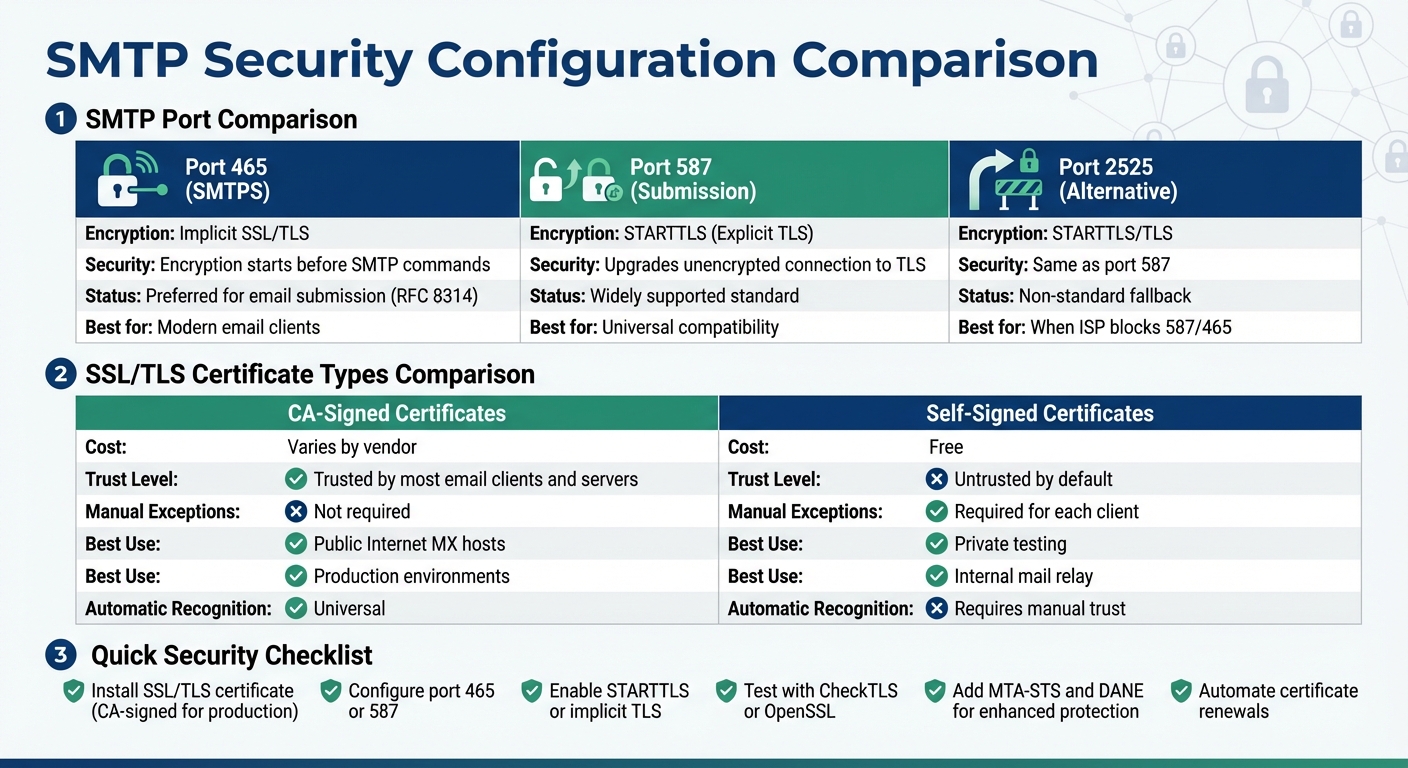
SMTP Port and Certificate Comparison Guide for Secure Email
To ensure secure and authenticated email communication, SSL/TLS certificates are a must for encrypting SMTP channels.
These certificates use public and private key encryption to protect your email data. They play two key roles: privacy (encrypting data to block unauthorized access) and authentication (confirming you're connecting to the legitimate server, not a fake one). Without a certificate from a trusted Certificate Authority (CA), most modern email clients will either reject your connection or require users to manually bypass security warnings. Traditionally, SMTP servers use port 25 and send data in cleartext, which leaves messages vulnerable to interception or tampering.
By using SSL/TLS certificates, you can enable the STARTTLS extension. This allows the SMTP server and client to negotiate a secure, encrypted connection. As RFC 3207 notes, TLS is "a popular mechanism for enhancing TCP communications with privacy and authentication".
SMTP servers typically rely on two types of certificates: CA-signed and self-signed.
Modern SMTP servers, like Postfix, support multiple certificate algorithms, including RSA, DSA, and ECDSA. RSA remains the most widely used, but ECDSA (available in Postfix 2.6 and later) offers better performance. Postfix 3.4 and newer versions can handle up to five different certificate chains simultaneously, automatically selecting the best option for each client.
| Certificate Type | Cost | Trust Level | Best Use Case |
|---|---|---|---|
| Self-Signed | Free | Untrusted by default; manual exceptions required | Private testing or internal mail relay |
| CA-Signed (Public) | Varies by vendor | Trusted by most email clients and servers | Public Internet MX hosts and production environments |
SMTP servers require certificates and private keys in the PEM format. The certificate must include a domain name in either the Common Name or Subject Alternative Name field that matches the fully qualified domain name (FQDN) used by clients to connect.
To obtain a certificate, you'll first need to generate a Certificate Signing Request (CSR). This can be done using a simple OpenSSL command:
openssl req -new -newkey rsa:2048 -nodes -keyout mail.mydomain.key -out mail.mydomain.csr
Once you have your CSR, submit it to a Certificate Authority - either a commercial provider or a free automated CA. After verifying your domain ownership, the CA will issue your certificate. If your CA provides an intermediate certificate, combine it with your primary certificate into a single .pem file. Place your server certificate first, followed by any intermediate CA certificates in bottom-up order.
Store these certificate files in a secure, root-owned directory, such as /etc/pki/tls or /etc/mail/certs, and set permissions to chmod 600 to prevent unauthorized access. Make sure the private key is not encrypted with a passphrase, as email services cannot prompt for a password during startup.
For an extra layer of security, consider using DANE TLSA records in your DNS zone. Publishing "3 1 1" associations (specifying the SHA256 digest of your server's public key) allows for certificate renewals without immediate DNS updates, as long as the same key pair is reused.
Once your certificates are ready, configure your SMTP server to enable SSL/TLS encryption and secure your email communications.
After obtaining your certificates, the next step is to configure your SMTP server to use them. While the exact steps depend on the server software you’re using, the basic process is consistent: point your server to the certificate files, ensure proper file permissions, and enable encryption on the necessary ports.
For Postfix, there are two configuration approaches. If you’re using a modern version (3.4 or newer), you can simplify management by combining your private key, server certificate, and intermediate CA certificates into a single file. This method also avoids potential renewal race conditions. Add the following line to your /etc/postfix/main.cf file:
smtpd_tls_chain_files = /etc/postfix/combined.pem
For older versions, you’ll need to reference separate files instead:
smtpd_tls_cert_file = /etc/postfix/cert.pem
smtpd_tls_key_file = /etc/postfix/key.pem
To enable opportunistic TLS, set smtpd_tls_security_level = may. This allows encrypted connections when supported by the client.
For Exim, the configuration is more straightforward. In the global settings, specify your certificate and private key paths:
tls_certificate = /etc/exim/cert.pem
tls_privatekey = /etc/exim/key.pem
To advertise STARTTLS to clients, include:
tls_advertise_hosts = *
Both Postfix and Exim can handle multiple certificate types (e.g., RSA and ECDSA) and will choose the best option based on the client’s capabilities.
Set your private key files to root ownership with strict permissions, such as chmod 400, to prevent unauthorized access. Avoid encrypting the private keys with a passphrase, as this would require manual input every time the server restarts.
| Feature | Postfix Configuration (main.cf) | Exim Configuration (Global) |
|---|---|---|
| Certificate Path | smtpd_tls_cert_file or smtpd_tls_chain_files |
tls_certificate |
| Private Key Path | smtpd_tls_key_file |
tls_privatekey |
| Enable TLS | smtpd_tls_security_level = may |
tls_advertise_hosts = * |
| DH Parameters | smtpd_tls_dh1024_param_file |
tls_dhparam |
Once your certificates are installed, the next step is to configure the SMTP ports for encrypted communication.
Port 587 typically uses STARTTLS, while port 465 is reserved for implicit TLS. According to RFC 8314, port 465 is now the preferred option for email submission.
For Postfix, the port settings are managed in /etc/postfix/master.cf. To enable port 587, uncomment the submission service and add the following options to enforce encryption and authentication:
-o smtpd_tls_security_level=encrypt
-o smtpd_sasl_auth_enable=yes
To enable port 465, uncomment the submissions service and include:
-o smtpd_tls_wrappermode=yes
The Postfix documentation advises against enabling wrapper mode directly in main.cf. Instead, it recommends configuring it specifically for a dedicated port in master.cf.
For Exim, enabling port 465 is as simple as adding the following line to the global configuration:
tls_on_connect_ports = 465
Ensure this port is listed in either daemon_smtp_ports or local_interfaces. Port 587 is typically enabled by default, as Exim automatically advertises STARTTLS for all hosts.
After making these changes, restart your server and verify the configuration. You can increase log verbosity for troubleshooting - for example, by setting smtpd_tls_loglevel = 2 in Postfix. Common issues to watch for include encrypted private keys, missing intermediate certificates, or firewalls blocking TLS connections.
Once your server is set up, the next step is to secure your email clients. This involves selecting the correct port, enabling encryption, and using proper authentication credentials. Most email clients support both implicit TLS (port 465) and explicit TLS (port 587). According to the Internet Engineering Task Force, port 465 is recommended for implicit TLS. Configuring your email client this way ensures the entire communication process is secure, complementing the SSL/TLS setup on your SMTP server.
For email clients like Outlook and Thunderbird, manual configuration is key. Here’s what you need to do:
If standard ports like 587 or 465 are blocked by your ISP, you can opt for port 2525 as an alternative. Below is a quick reference guide for configuring your connection:
| Connection Type | Port | Encryption Method | Use Case |
|---|---|---|---|
| SMTPS | 465 | Implicit SSL/TLS | Encryption starts before any SMTP commands are sent. |
| STARTTLS | 587 | Explicit TLS | Upgrades an unencrypted connection to TLS during the session. |
| Alternative | 2525 | STARTTLS/TLS | Use when standard ports 587 or 465 are blocked by your ISP. |
If you experience connectivity issues, switching to port 2525 often resolves the problem, especially for users on residential networks where standard mail ports might be restricted.
After setting up your email client, it’s crucial to confirm that encryption is functioning correctly. Send a test email to verify everything is working as intended.
These steps ensure your email communication remains secure from start to finish, safeguarding sensitive information during transmission.
It's essential to test your SMTP setup to ensure encryption is active. Without proper verification, your server could default to plaintext transmission if a TLS connection can't be established. Regular testing helps avoid this fallback and ensures secure communication.
Online tools make it easy to check your SMTP encryption setup. Platforms like CheckTLS and MXToolBox offer real-time diagnostics for both inbound and outbound encryption. For instance, CheckTLS has conducted nearly one billion email security tests over 15 years, solidifying its reputation as a trusted resource.
testTo: function. Input your domain and select either the "Matrix" or "Detail" output. Look for "OK" in the TLS and Cert columns - this indicates your server supports STARTTLS and is using a valid, unexpired certificate. The tool also checks if your certificate matches your MX record and is signed by a trusted Certificate Authority.
testFrom: function. Send a test email from your server to the provided test address. The resulting report will detail the TLS version and cipher suite in use. Look for terms like "TLS: Successful" and references to versions such as "SSLVersion:TLSv1_3." Additionally, these tools can validate security protocols like SPF, DKIM, and DMARC for comprehensive email authentication.
For ongoing security, consider scheduling regular tests to get alerts if your TLS configuration fails or certificates expire. While CheckTLS offers limited free tests, a full subscription with advanced features costs around $25.
If you prefer a manual approach, OpenSSL commands are a powerful alternative.

For administrators comfortable with the command line, OpenSSL's s_client tool provides in-depth details about the encryption handshake and is great for troubleshooting.
When reviewing the OpenSSL output, confirm the following:
To validate TLSA records, use this command to extract a public key fingerprint:
openssl x509 -in cert.pem -noout -pubkey | openssl pkey -pubin -outform DER | openssl dgst -sha256 -c
Pay attention to specific SMTP error codes during testing:
These steps ensure your SMTP server maintains secure and reliable encryption.
While SSL/TLS encryption lays a solid groundwork, it doesn’t cover every vulnerability. For example, attackers can strip opportunistic SMTP encryption before messages reach your server. To strengthen email security, incorporating additional protocols is essential.
MTA-STS (Mail Transfer Agent Strict Transport Security) ensures that sending servers establish encrypted connections and reject emails if certificate validation fails. To implement MTA-STS, you need to publish a policy file at:
https://mta-sts.[yourdomain]/.well-known/mta-sts.txt
This policy file outlines your encryption requirements and supports three modes:
"MTA-STS forces a TLS connection, preventing suppression of the STARTTLS upgrade, and defines what the MX records should be for a domain, therefore preventing DNS query interception." – The Email Security Geek
Start with the testing mode for at least two weeks. During this phase, Google suggests setting the max_age value between 604,800 and 1,209,600 seconds (1–2 weeks). Pair MTA-STS with TLS-RPT (SMTP TLS Reporting) to receive daily reports about connection failures, expired certificates, or policy mismatches.
DANE (DNS-based Authentication of Named Entities) strengthens security by using DNSSEC to bind your server's certificate to its domain with TLSA records, reducing dependence on traditional Certificate Authorities. The recommended TLSA configuration is "3 1 1" (DANE-EE, SPKI, SHA-256).
| Feature | MTA-STS | DANE |
|---|---|---|
| Trust Mechanism | Web PKI (Certificate Authorities) | DNSSEC |
| Discovery Method | DNS TXT record + HTTPS policy file | DNS TLSA records |
| Implementation Difficulty | Moderate (requires HTTPS hosting) | High (requires DNSSEC deployment) |
Using both protocols together offers the best protection. MTA-STS is easier to implement without DNSSEC, while DANE provides stronger resistance to man-in-the-middle attacks. Additionally, since about 98% of email servers accept inbound TLS connections, enforcing encryption won’t disrupt communication with most major providers.
Strong enforcement protocols and timely certificate management are key to effective email security.
Expired certificates can lead to email delivery failures, so automating renewals is crucial. Tools like Certbot, which supports the ACME protocol, can help streamline this process. This is especially important as certificate lifetimes continue to shrink - Let’s Encrypt plans to reduce certificate validity to just 45 days by late 2025, down from the current 90 days.
For DANE, it’s important to pre-publish the TLSA record for your new certificate and allow the previous DNSSEC signature to expire before switching keys.
For MTA-STS, update the id field in your _mta-sts DNS TXT record every time you modify the policy file. Google recommends using a timestamp format (YYYYMMDDHHMM) for this ID to make tracking changes easier. Keep in mind, the policy file must not exceed 64 KB and can be cached for up to 31,557,600 seconds (roughly one year).
Monitoring TLS-RPT reports regularly is another critical step. These reports can help identify certificate or policy issues before they disrupt email delivery. Major providers like Google, Microsoft, and Comcast support TLS-RPT, giving you valuable insights into how external servers interact with your encryption setup.
Securing SMTP with SSL/TLS encryption is crucial for protecting modern email communications. Since SMTP doesn't include encryption by default, implementing SSL/TLS certificates, configuring secure ports (like 465 for implicit TLS or 587 for STARTTLS), and enforcing encryption at the server level are essential steps to safeguard sensitive data. These measures not only shield against man-in-the-middle attacks but also prevent your server from being exploited as an open relay.
Additional tools like MTA-STS and DANE provide extra layers of protection, defending against downgrade attacks and ensuring the authenticity of certificates. Automating certificate renewals is becoming increasingly important, especially as certificate lifetimes shrink - set to drop to 47 days by March 2029. For organizations handling large-scale email campaigns, manually managing these configurations can quickly become overwhelming.
Platforms like Infraforge offer a practical solution for teams managing high-volume cold email outreach. They streamline the process by delivering secure, pre-configured email infrastructure. Features like automated DNS setup, SSL and domain masking, dedicated IPs, and pre-warmed mailboxes simplify the complexities of secure email management. Infraforge also automates certificate rotation, saving time and reducing errors, so teams can focus on their outreach efforts.
"We also figured out that we don't need to manually rotate every single certificate and that automation can achieve much better results with far less time and effort." – Ivan Ristić, Chief Scientist, Red Sift
Whether you're running your own email servers or relying on a managed platform, the priorities remain the same: enforce encryption, automate certificate renewals, and stay vigilant with monitoring. With SSL/TLS properly in place, your email infrastructure becomes more secure against attacks while also boosting deliverability.
When it comes to securing email communications, CA-signed certificates and self-signed certificates serve very different purposes.
CA-signed certificates are issued by trusted Certificate Authorities (CAs). Because these certificates are widely recognized by most SMTP clients, they ensure a secure connection without requiring any manual setup. This makes them the go-to choice for production environments where trust and reliability are non-negotiable.
Self-signed certificates, however, are generated by the server itself and don’t come with built-in trust. SMTP clients will either reject them outright or display warnings unless you manually configure them to trust the certificate. While they can work for testing or internal use, they are not a good fit for public-facing email servers. Using them in such scenarios can lead to security issues and impact email deliverability.
To confirm that your SMTP server is secured with SSL/TLS encryption, you can test the connection using an email client by sending a test message.
Start by checking that your email client is configured to use SSL/TLS. This involves enabling the appropriate security settings in the account setup. Use port 465 for SSL/TLS connections, and make sure to input your SMTP server details, including the hostname, username, and password. Once everything is set up, send a test email to a trusted recipient.
If the email goes through without any errors and is successfully delivered, your server is properly configured. On the other hand, if you run into connection or certificate errors, review your server's TLS certificate and verify the port settings to address the problem. A successful test ensures your SMTP server is encrypted and secure with SSL/TLS.
MTA-STS boosts email security by letting domain owners set a policy that ensures emails are sent only over encrypted TLS connections. This stops attackers from downgrading connections to plaintext, keeping sensitive information safe during transmission.
DANE takes security a step further by using DNS-based TLSA records to verify the receiving server's certificate. This adds another layer of cryptographic authentication, making TLS connections harder to tamper with or downgrade. When combined, these protocols greatly lower the chances of email interception or spoofing.