
Personalized Outbound Strategy
Get The Right Outbound Strategy In Minutes
Enter your email to get a custom plan & stack recommendation for your business
It's being carefully crafted by AI
Please check your mailbox in 5 minutes

6 out of every 100 IP blacklist checks flagged a listing in 2026, up from just 2 out of 100 in 2025, as reported in Unspam's Email Deliverability Report.
A blacklist listing can cause your emails to get blocked or rejected. But your IP doesn't have to be blacklisted for its reputation to suffer. Gmail and Outlook can still send your emails to spam if they detect poor sending patterns.
High spam complaints, sudden increases in sending volume, and activity from other senders sharing your IP can all contribute to the problem.
So, how do you find out what's damaging your IP reputation and fix it?
In this guide, I'll explain how to check your IP reputation, identify the cause, and fix the issues affecting your email delivery.
There isn't one IP reputation score used by every email provider. Gmail, Microsoft, Spamhaus, and Cisco can each see and judge your sending IP differently.
So, check more than one source before deciding that your IP has a reputation problem.
You should also pay attention to what is happening after you send. Your IP may have a reputation problem if:
A clean Spamhaus check does not prove that your IP has a good reputation. Spamhaus tells you whether the IP appears on its blocklists, while providers such as Google and Microsoft use their own signals when deciding how to handle your emails.
So, if you find several warning signs, don't immediately replace the IP. First, find out what caused its reputation to drop. That's what you need to fix before increasing your sending volume again.
A poor IP reputation usually comes from a pattern of bad signals, such as spam complaints, high bounces, sudden sending spikes, weak authentication, or blacklist activity.
So, the first goal is to find what caused the drop. Once that is fixed, you can slowly return to normal sending.
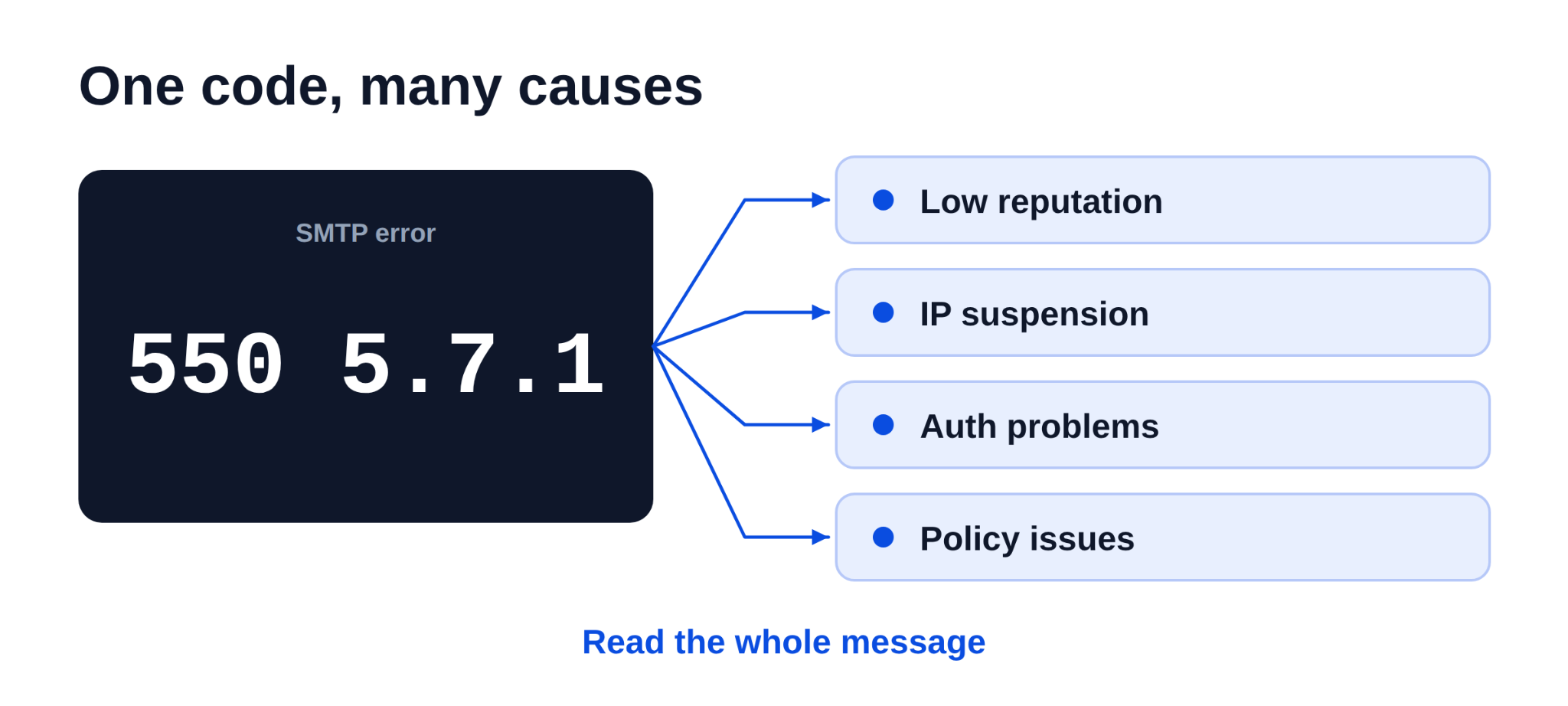
Check the full SMTP response returned with rejected or deferred emails. Codes such as 550 5.7.1 can appear when Gmail blocks mail because of low IP reputation, an IP suspension, authentication problems, or other policy issues.
The code alone does not tell you the cause, so read the full error message before deciding what needs to be fixed.
If messages are bouncing or being deferred, lower your sending volume while you investigate. Google also recommends reducing volume when these problems appear, then increasing it slowly once delivery starts to improve.
Review your outbound logs for sudden spikes, compromised accounts, or applications sending mail without your knowledge. If you find anything suspicious, secure the account or system first. Otherwise, the same activity can continue hurting the IP.
You should remove invalid addresses, hard bounces, and contacts who should no longer receive your emails. Poor list quality can keep bounce rates and complaints high, which makes recovery harder.
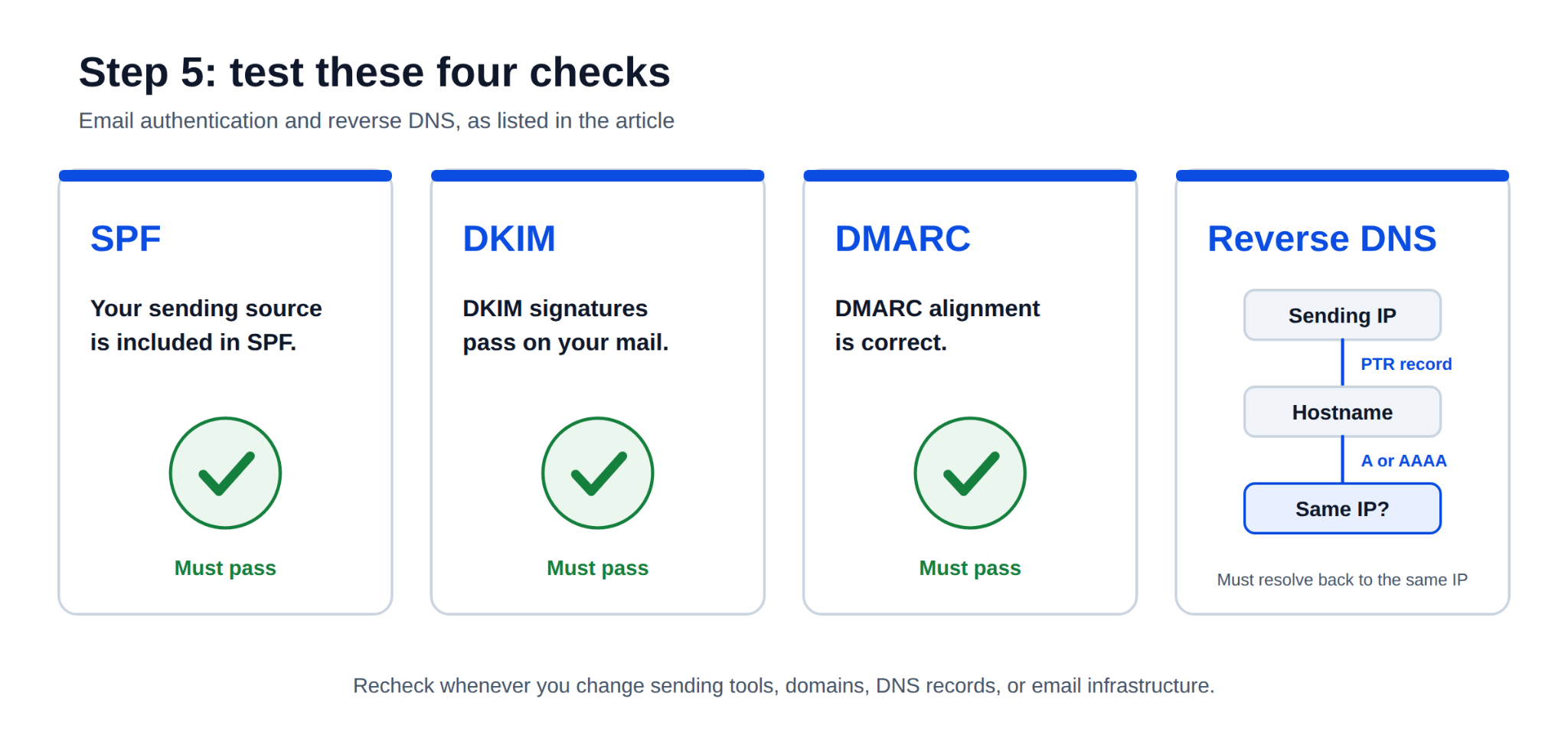
Confirm that your sending source is included in SPF, DKIM signatures pass, and DMARC alignment is correct.
Also check reverse DNS. Your sending IP should resolve through its PTR record to a hostname, and that hostname should resolve back to the same IP through its A or AAAA record.
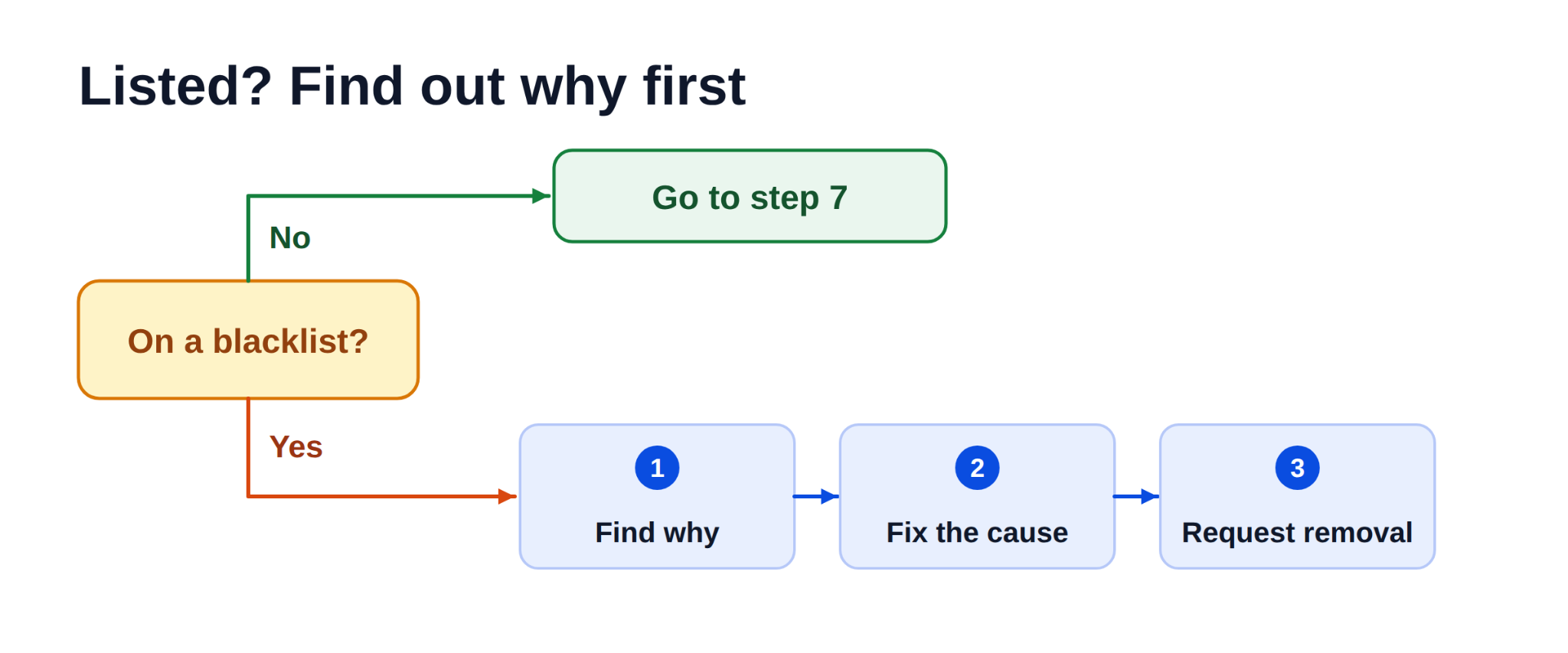
If your IP appears on a blacklist, find out why it was listed before asking for removal. Fix the underlying problem first, then follow that blacklist operator’s removal process. If the IP is not listed, move on to the next step.
Once the main problems are fixed, restart with a lower and steady volume. You should avoid sudden spikes. Google recommends increasing volume gradually and monitoring bounces, spam rates, and server responses as you scale.
Give the IP time to recover after you have fixed the cause, corrected its setup, and resolved any relevant blocklist listings.
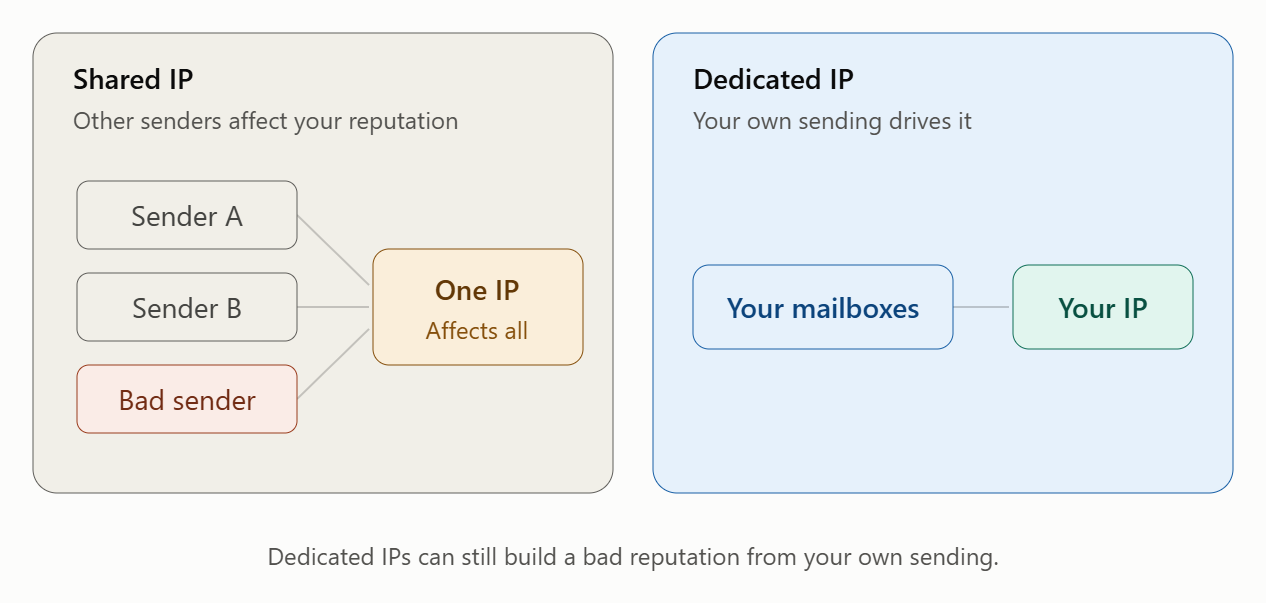
If reputation problems continue, check whether the issue is tied to the IP itself or to infrastructure you cannot control. This is especially important with shared IPs because the activity of other senders can affect the reputation of everyone using that IP.
Only move to another IP when there is a clear reason to replace the existing one. Moving the same problematic traffic to a new IP will not solve the underlying problem.
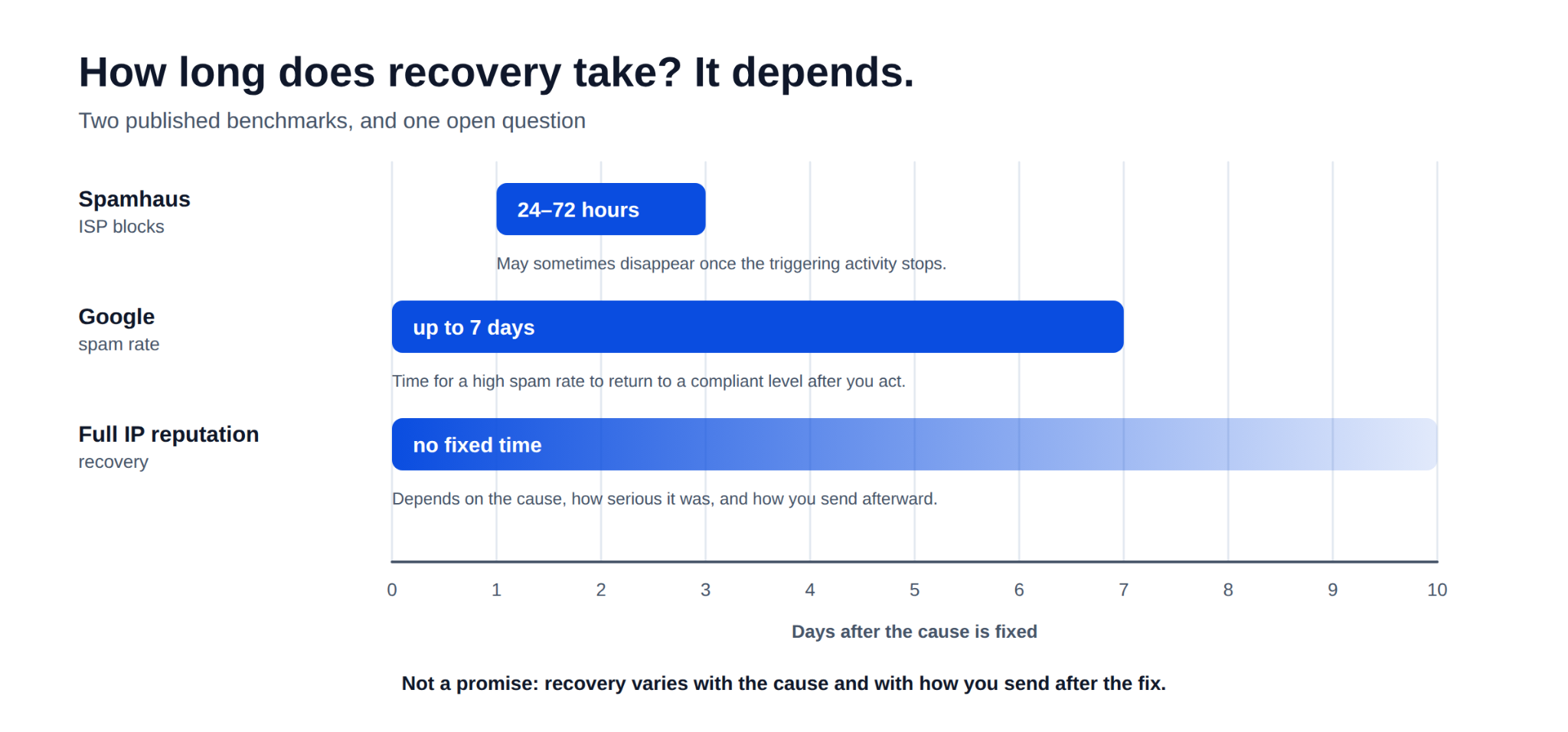
There is no fixed time for a bad IP reputation to recover. It depends on what caused the problem, how serious it was, and how your sending behaves after you fix it. Some delivery problems can clear relatively quickly. Spamhaus says ISP blocks may sometimes disappear within 24-72 hours after the activity that triggered them stops.
Google also says that after you take steps to reduce a high spam rate, it can take up to 7 days for the spam rate to return to a compliant level. However, that does not mean your IP reputation will fully recover within seven days.
The best approach is to fix the cause, keep your sending volume steady, and monitor complaints, bounces, and delivery errors while the IP recovers.
Once you have fixed the IP reputation problem, keep an eye on the signals that can cause it to drop again. This helps you catch a problem while it is still limited to a few bounces, complaints, or rejected emails.
A sudden rise in complaints, bounces, sending volume, or SMTP errors can show you that something is going wrong before the IP develops a larger reputation problem.
If you want more control over IP reputation, you need control over the infrastructure behind your sending.

Infraforge gives you private email infrastructure on dedicated servers instead of placing your mailboxes in a shared IP pool. This means the sending activity behind your infrastructure comes from your own setup, rather than unrelated senders.
This gives you more control when you are managing IP reputation. With Infraforge, you can:
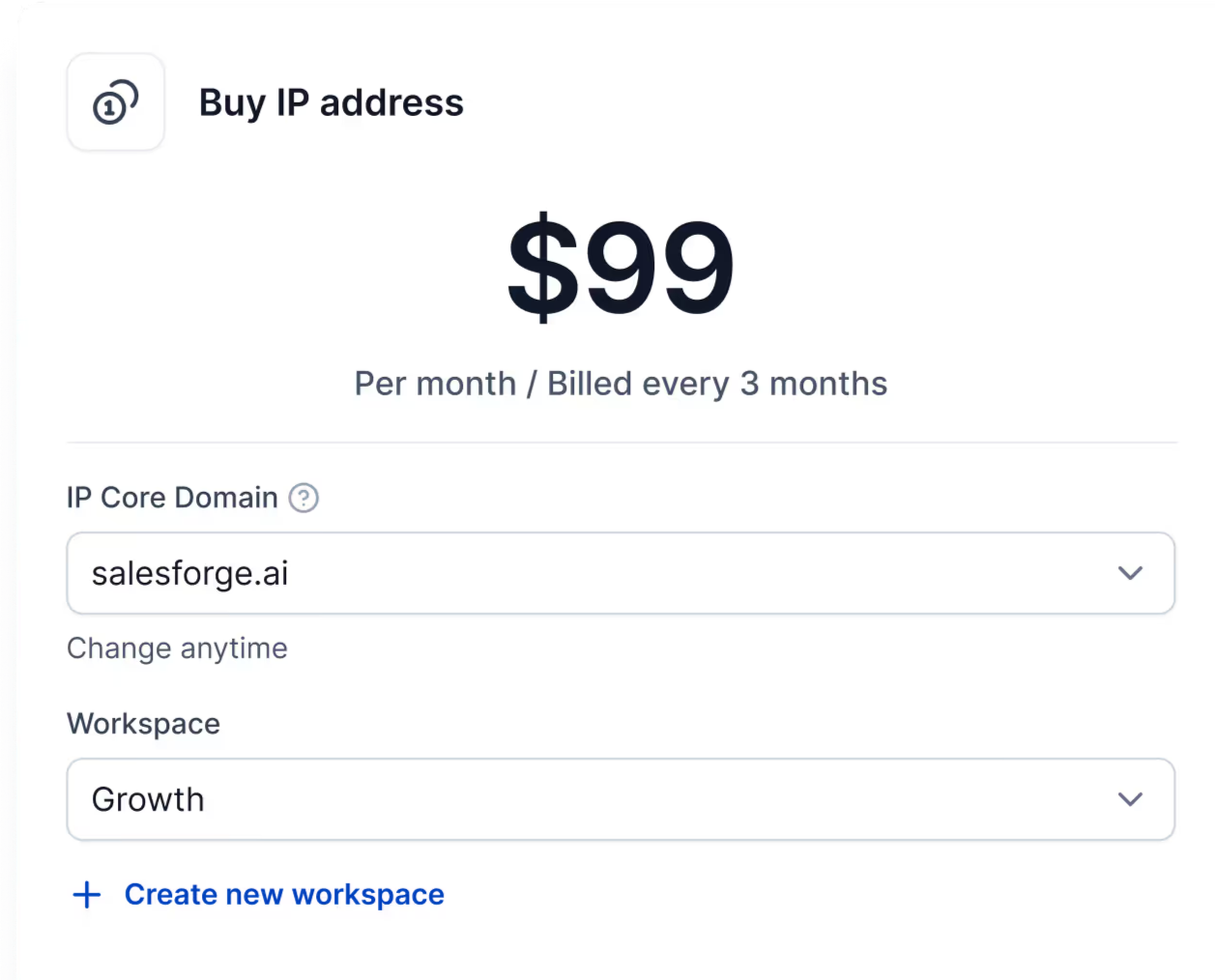
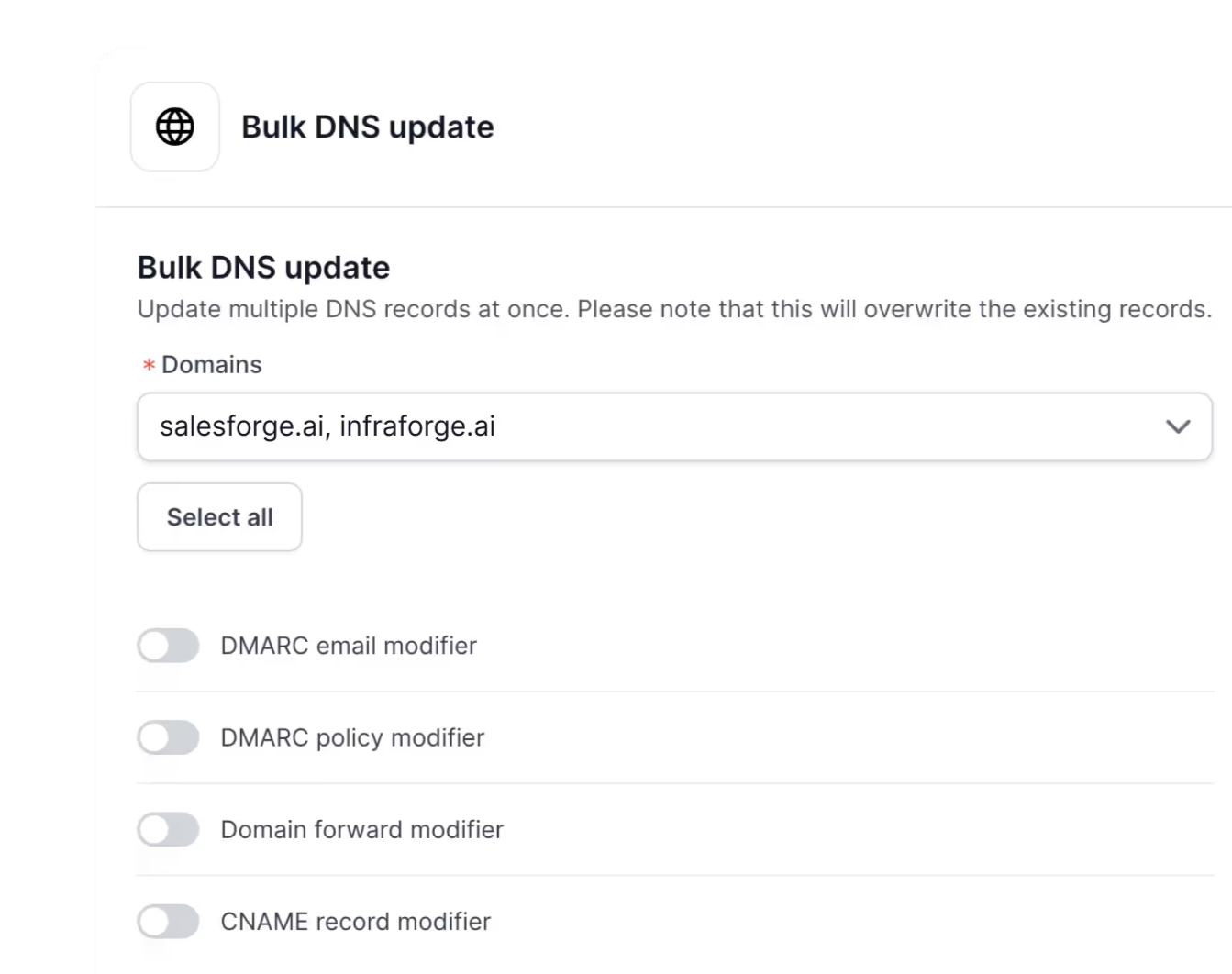
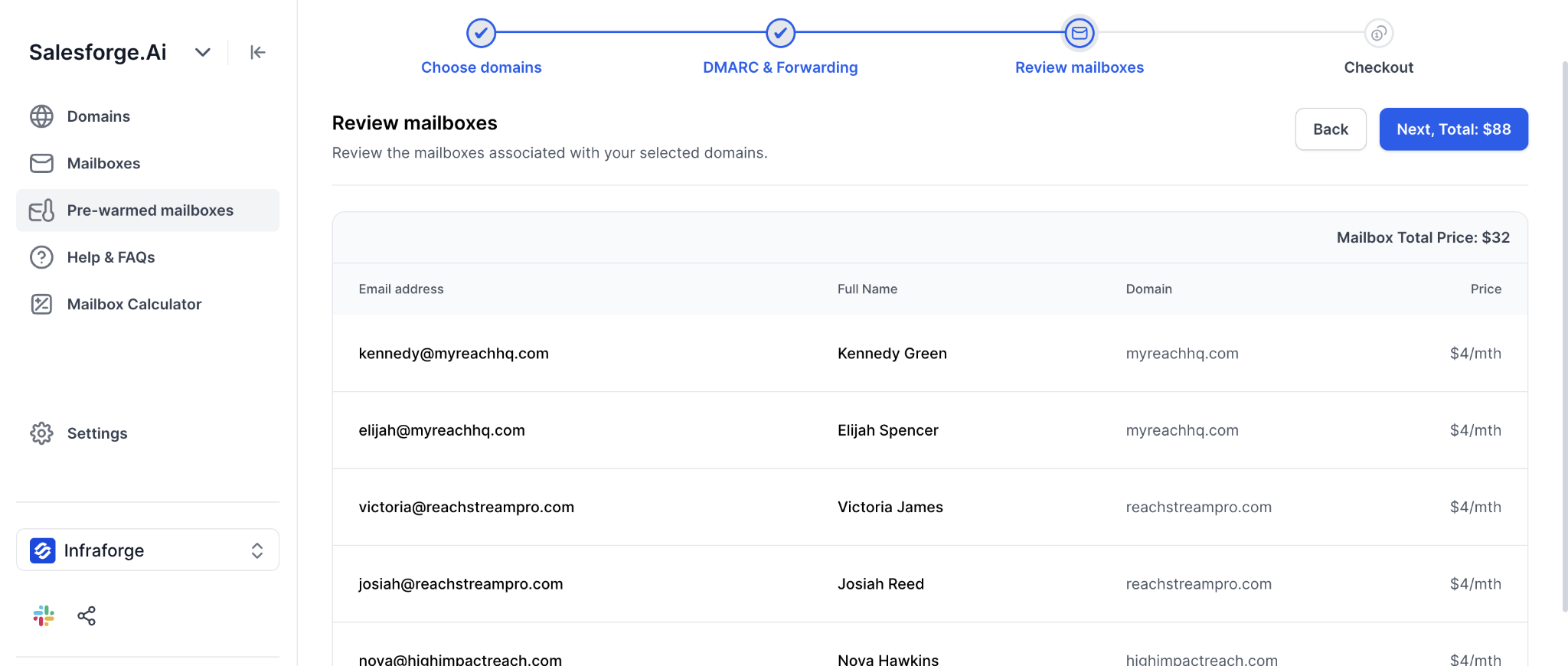
A dedicated IP can still develop a bad reputation. Infraforge gives you more control over the infrastructure, but your sending practices still affect the reputation you build.
Enter your email to get a custom plan & stack recommendation for your business
Please check your mailbox in 5 minutes

A bad IP reputation will not improve just because you switch IPs. You first need to fix what caused it, such as high complaints, bounces, sending spikes, authentication issues, or unauthorized sending.
Once the problem is fixed, keep your volume steady and watch for new blocks, bounces, and complaints as the IP recovers.
If you want more control over your sending IPs, Infraforge gives you private email infrastructure with dedicated servers, automated email authentication, and Multi IP Provisioning.
Get started with Infraforge to manage your cold email infrastructure without relying on a shared IP pool.