Microsoft 365 has fixed sending limits. You cannot send unlimited emails.
There are clear daily limits, per-message limits, and separate limits for external recipients.
If you are using it for cold email, these numbers matter. Once you cross them, your account can be throttled or blocked.
In this guide, I’ll explain the exact limits Microsoft 365 allows, how Microsoft calculates your sent emails, and what can trigger throttling or suspension.
So you can decide if it fits your use or not.
Key Takeaways
Get Infraforge and scale your cold email infrastructure the right way with dedicated IPs
If you are using Microsoft 365 Business or Enterprise for cold email, your mailbox runs on Exchange Online.
Exchange Online has fixed email sending limits. These limits control:
Here are the exact limits that apply.
Each user can send to up to 10,000 recipients in a 24-hour sliding window.
This is not based on calendar days. It is counted hour by hour.
For example:
You’ve now reached the 10,000 limit.
Once the total drops below 10,000, sending works again.
This limit applies to both:
In a single email, you can include up to 1,000 recipients total.
This includes:
All combined cannot go above 1,000 in one message.
Even if your daily limit is still available, one message cannot cross this number.
Counting depends on how the group is stored.
For the daily 10,000 limit:
So the same group can be counted differently depending on where it is stored.
For tenant-level external limits, distribution groups are fully expanded and each external member is counted individually.
Microsoft also limits sending speed.
Each user can send about 30 messages per minute.
This means:
This is a speed limit, not a volume limit.
Exchange Online is not designed for bulk mailing scenarios.
Within the 10,000 daily limit, there is a separate cap for external recipients.
Each user can send to 2,000 external recipients per 24 hours.
External means email addresses that are not part of your organization’s accepted domains.
There is also an organization-level external sending limit.
This applies to the entire tenant, not just one mailbox.
It controls how many external recipients your organization can send to in a 24-hour sliding window.
Important details:
If emails are sent from the default onmicrosoft.com domain:
Outbound mail is limited to:
100 external recipients per organization within a 24-hour rolling window
Inbound mail is not affected.
If you send encrypted emails:
The recipient limit is approximately 200 recipients per message.
This applies only to encrypted messages.
When you hit a Microsoft 365 limit, the system does not allow you to continue normally. Sending either stops, slows down, or fails.
Here is what actually happens.
If a user reaches 10,000 recipients in 24 hours:
Your cold email activity stops until the limit resets.
If a single email contains more than 1,000 recipients:
You cannot send large bulk emails in one message.
If you send too fast:
Your sending speed is controlled automatically by the system.
If you reach 2,000 external recipients in 24 hours:
Cold emails stop reaching prospects.
If the tenant hits the external recipient rate limit:
Cold outreach stops across the company.
If more than 100 external recipients are sent from the onmicrosoft.com domain:
Emails do not reach external recipients.
If an encrypted email exceeds about 200 recipients:
Encrypted bulk sending is limited.
Microsoft does not count the number of emails. It counts the number of recipients.
How those recipients are saved makes a difference.
Here is how it works:
So in cold outreach:
Microsoft calculates limits based on how the recipients are stored and expanded.
If your Microsoft 365 account was purchased through GoDaddy, some limits can be stricter at the provider level.
For example:
This matters for cold email because even if you stay within daily limits, your sending can slow down if you try to send too quickly.
So if you're using Microsoft 365 via GoDaddy, both Microsoft’s limits and GoDaddy’s platform-level controls can affect your outreach.
If your cold email setup requires higher external volume, dedicated sending infrastructure, or separation from main business mailboxes, Microsoft 365’s enforced limits become a restriction.
In short, Microsoft 365 can send emails, but it is not built for high-volume cold email campaigns.
Infraforge is a private email infrastructure platform designed specifically for outbound cold outreach, helping you scale sending safely.
Unlike Microsoft 365, which is designed for general business communication, Infraforge focuses only on cold email infrastructure.
Instead of working inside one mailbox with fixed limits, Infraforge allows you to create and manage multiple domains and mailboxes.
Each mailbox runs on a dedicated IP.
The technical setup, like SPF, DKIM, and DMARC, is handled automatically when you add a domain.
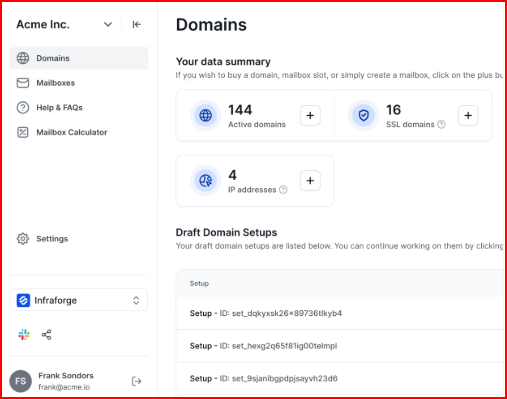
If you want to start faster, you can use pre-warmed mailboxes and domains.
Or, if you prefer a separate warmup for your outreach, you can use dedicated warmup tools like Warmforge.
If you need scale, you can provision multiple IPs and rotate senders.
DNS updates can be managed in bulk across your infrastructure.
It also connects directly with Salesforge and other sending tools, so it works as the infrastructure layer while your outreach tool handles sequences.
If your cold email process depends on scaling outreach beyond standard mailbox limits, this is where a dedicated infrastructure like Infraforge becomes relevant.
Microsoft 365 Business allows email sending, but it operates within fixed per-user, per-minute, and tenant-level limits. External limits apply.
Sending can pause once thresholds are reached.
Microsoft also states that Exchange Online is not suited for bulk mailing scenarios.
For normal business communication, this structure works.
But cold email often depends on consistent external outreach, controlled infrastructure, and scalable mailbox setups.
Infraforge is built specifically for cold email purposes.
It provides dedicated IPs, automated DNS setup, pre-warmed mailboxes, and infrastructure designed around outbound campaigns, not productivity email.
Get Infraforge! Set up and scale your cold email in minutes