
If you're new to cold emailing, you may have come across the term cold email infrastructure and wondered what it means. It includes the domains, mailboxes, email providers, and DNS records you need to send cold emails.
The right setup helps protect your sender reputation and manage email authentication, sending volume, and mailbox health.
Good infrastructure supports email deliverability, but your targeting, offer, and email copy also affect reply rates. Average cold email reply rates are often reported at around 3% to 5%, though results vary by campaign.
In this guide, I'll answer the most common questions beginners have about cold email infrastructure:
Plus, I'll cover how to set up your infrastructure, where to buy domains and mailboxes, and how much it costs. Let's get started.
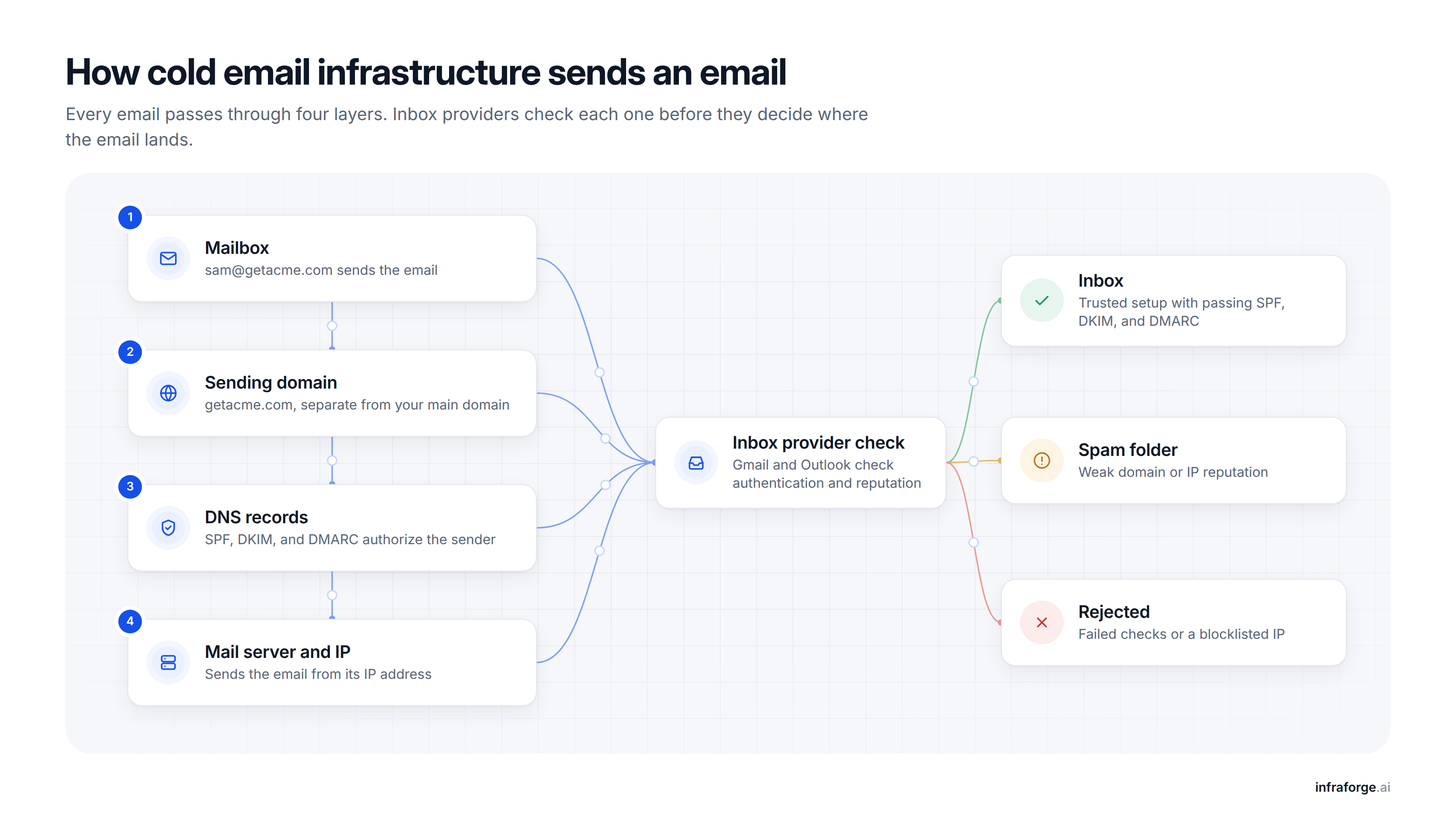
Cold email infrastructure is the technical setup used to send cold emails. It includes sending domains, email mailboxes, DNS records, and mail servers. These components work together to send emails and help protect your sender reputation.
How it works: You send an email from a mailbox linked to your sending domain. DNS records help the recipient's email provider verify the sender, while the mail server delivers the message.
Based on the email's authentication and sender reputation, the provider decides whether to deliver it to the inbox, send it to spam, or reject it.
Here's why cold email infrastructure matters:
In short, cold email infrastructure helps you reach prospects more reliably, reduce manual work, and grow your outreach while keeping your primary business domain separate.
Google requires bulk senders who send 5,000 or more emails per day to personal Gmail accounts to meet additional sender requirements. Google counts messages from the same primary domain and its subdomains toward this threshold. Once a domain is classified as a bulk sender, that status is permanent.
Microsoft has similar requirements for Outlook.com. Since May 5, 2025, domains sending more than 5,000 emails per day to Outlook.com users must pass SPF and DKIM checks and publish a DMARC record. Messages that fail these requirements may be rejected with error code 550 5.7.515.
Setting up SPF, DKIM, and DMARC helps you meet these requirements, but authentication alone does not guarantee inbox placement.
Your sender reputation and sending practices also affect deliverability. Read this guide to Google's bulk sender guidelines for more details.
A working setup has six parts. Each part does a different job, and a problem in one part can hurt the others.
A sending domain is a separate domain you use only for cold outreach. If your company uses acme.com, your sending domains might be getacme.com or tryacme.com.
Separate domains protect your main domain. If one sending domain gets a poor reputation, your company's everyday email keeps working.
Each sending domain should point to your main website, so a prospect who visits it still finds your company. Domain masking shows your website on the sending domain without revealing your main domain.
A mailbox is the account that sends each email, such as [email protected]. A cold email setup usually spreads its volume across many mailboxes, because each one should send only a small number of cold emails a day.
Mailbox providers do not publish a safe daily number for cold email. Cold email senders commonly plan for about 30 emails per mailbox per day.
The sending tool then spreads each campaign across all your mailboxes. Monthly sending volume decides how many mailboxes you need.
DNS records are public settings on your domain. They tell inbox providers which servers can send email for your domain and what to do with email that fails these checks.
Every mailbox needs a provider to host it. There are two main choices.
Google Workspace and Microsoft 365 give you the same business mailboxes that many of your prospects use. They usually cost more per mailbox, and each company sets strict daily limits.
For example, Microsoft 365 sending limits cap each mailbox at 10,000 recipients a day.
SMTP-based providers host mailboxes on their own mail servers. SMTP is the standard protocol that servers use to send email.
These mailboxes usually cost less, and the provider sets up the servers and IP addresses for cold outreach.
Warmup builds a sending history for a new mailbox before it sends cold email.
A warmup tool sends emails between active mailboxes in a network, and those mailboxes open and reply to them. Inbox providers see normal conversations and start to trust the new mailbox.
Warmup has limits. It cannot fix broken DNS records, a bad prospect list, or a sudden jump in volume.
Correct authentication and steady sending matter more.
When you compare email warmup tools, check how each tool builds its network and whether warmup keeps running after your campaigns start.
The sending tool runs your campaigns on top of your infrastructure. It schedules emails, sends follow-ups, and spreads volume across your mailboxes. It also stops the follow-ups when a prospect replies.
Infrastructure and the sending tool do different jobs. When you compare cold email software, check that it connects to every mailbox provider you use.
Cold email infrastructure comes in six common setups. Some of them overlap, so many teams use more than one at the same time.
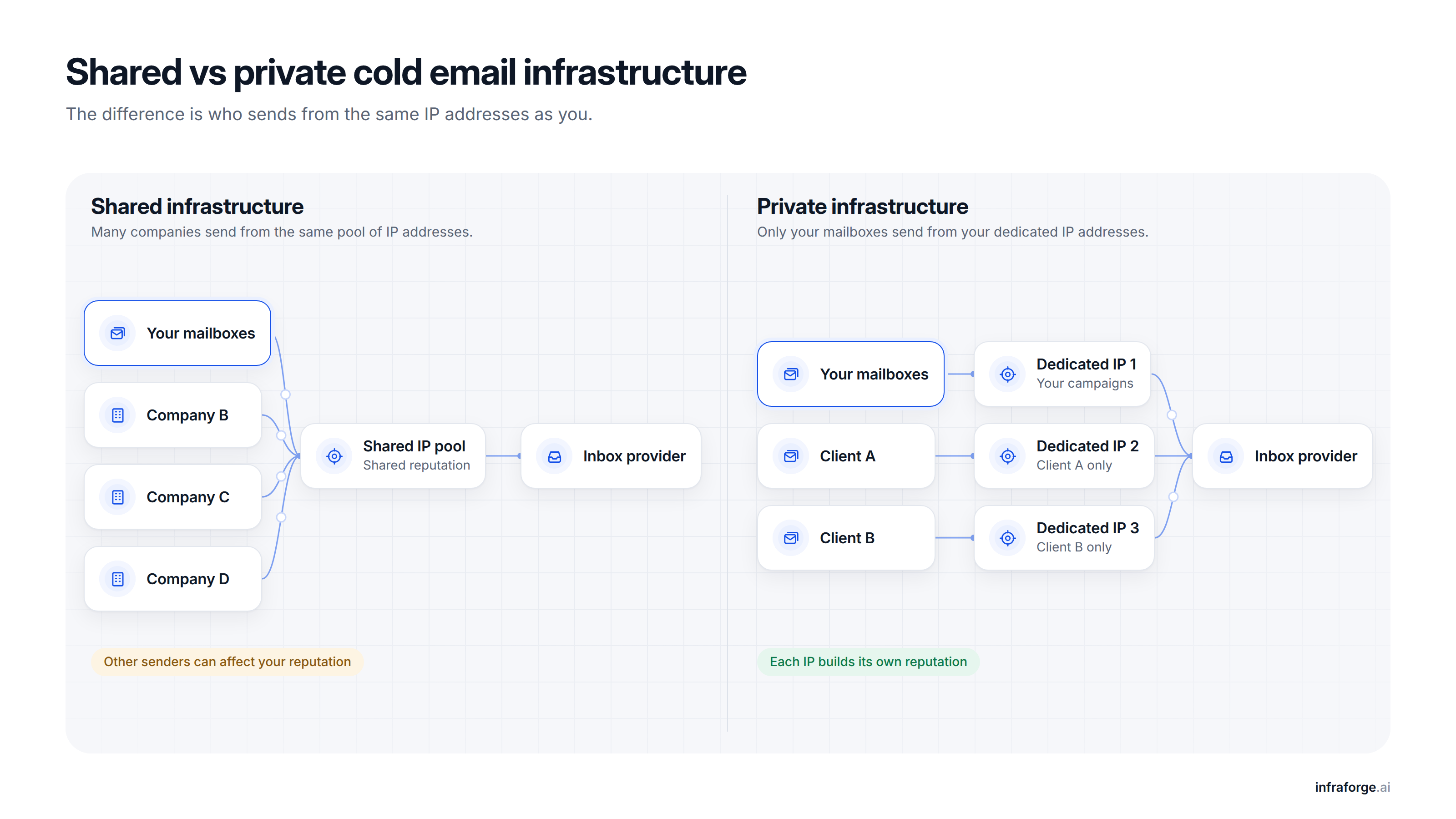
With shared infrastructure, your mailboxes send from a pool of IP addresses that many businesses use. Everyday Gmail and Outlook accounts also send from shared IP addresses.
Shared infrastructure is the cheapest option and the quickest to set up. The problem is that other senders on the same IP addresses can affect you. Google says the activity of every sender on a shared IP address affects the reputation of all senders on it.
I recommend shared infrastructure for teams that are starting cold email for the first time. It also works well for senders who expect a higher number of spam complaints. This comparison of shared and private infrastructure explains when shared IP addresses make more sense.
Private infrastructure runs your mailboxes on dedicated servers and IP addresses. No other company sends from your IP addresses, so the sender reputation of those IP addresses depends only on your own campaigns.
Private infrastructure costs more per mailbox than shared infrastructure. A new dedicated IP address also has no sending history. I raise its volume slowly before it carries a full campaign.
I recommend private infrastructure for agencies and high-volume teams that follow deliverability best practices closely. This comparison of dedicated and shared IPs explains the difference in detail.
Google Workspace and Microsoft 365 let you create business email accounts on your sending domains. You can set up the mailboxes yourself or use a cold email infrastructure provider to handle mailbox creation and DNS configuration.
Both services offer familiar email interfaces and built-in security features. Before buying mailboxes from a third-party provider, check that the accounts are genuine business accounts and that their use complies with the provider's policies.
Each service has sending limits, so you need to plan your email volume carefully.
Google Workspace and Microsoft 365 can cost more than some SMTP-based alternatives.
Compare mailbox prices, sending limits, provider policies, and setup support before choosing a service. Keep your sending volume low and follow the provider's current rules.
Azure Communication Services Email lets you send emails through Microsoft's cloud platform. Unlike Microsoft 365, it does not provide regular business mailboxes. Instead, it lets applications send emails through APIs or SMTP.
You can connect a verified domain and configure SPF and DKIM records to authenticate your emails. Azure also provides delivery reports and analytics to help you track email performance.
Verified custom domains have default sending limits of 30 emails per minute and 100 emails per hour per subscription. You can request higher limits through Azure Support, but approval depends on your sending reputation, delivery failures, and spam complaints.
Microsoft recommends increasing sending volume gradually over two to four weeks while monitoring delivery results.
Azure supports transactional, bulk, and marketing emails. Before using it for cold outreach, check Microsoft's current policies to confirm that your use case is permitted. Pricing depends on usage.
SMTP-based infrastructure covers any mailbox hosted on a cold email provider's own mail servers. SMTP is the standard protocol that servers use to send email.
These mailboxes can run on shared IP addresses or on your own dedicated IP address or server. They usually cost less per mailbox than Google or Microsoft mailboxes, but they do not offer ESP matching. ESP matching means sending from the same email provider your prospect uses, such as Google to Google.
Gmail sets two technical rules for every server that sends to it. The server must have valid reverse DNS, and it must send over a secure TLS connection. A good SMTP provider handles both for you.
Pre-warmed mailboxes are mailboxes that a provider has already warmed before you receive them. With them, cold campaigns can start in the same week instead of after two to four weeks.
No mailbox provider defines what "pre-warmed" means. Google expects every sender to build reputation through steady sending over time. For this reason, I keep volume steady and warmup running after I receive pre-warmed mailboxes.
Before you buy, you can ask the provider these questions:
This guide to pre-warmed mailboxes vs manual warming compares both approaches.
Here is the order I follow for every cold email infrastructure setup. I finish each step before I move to the next one, because each step depends on the one before it.
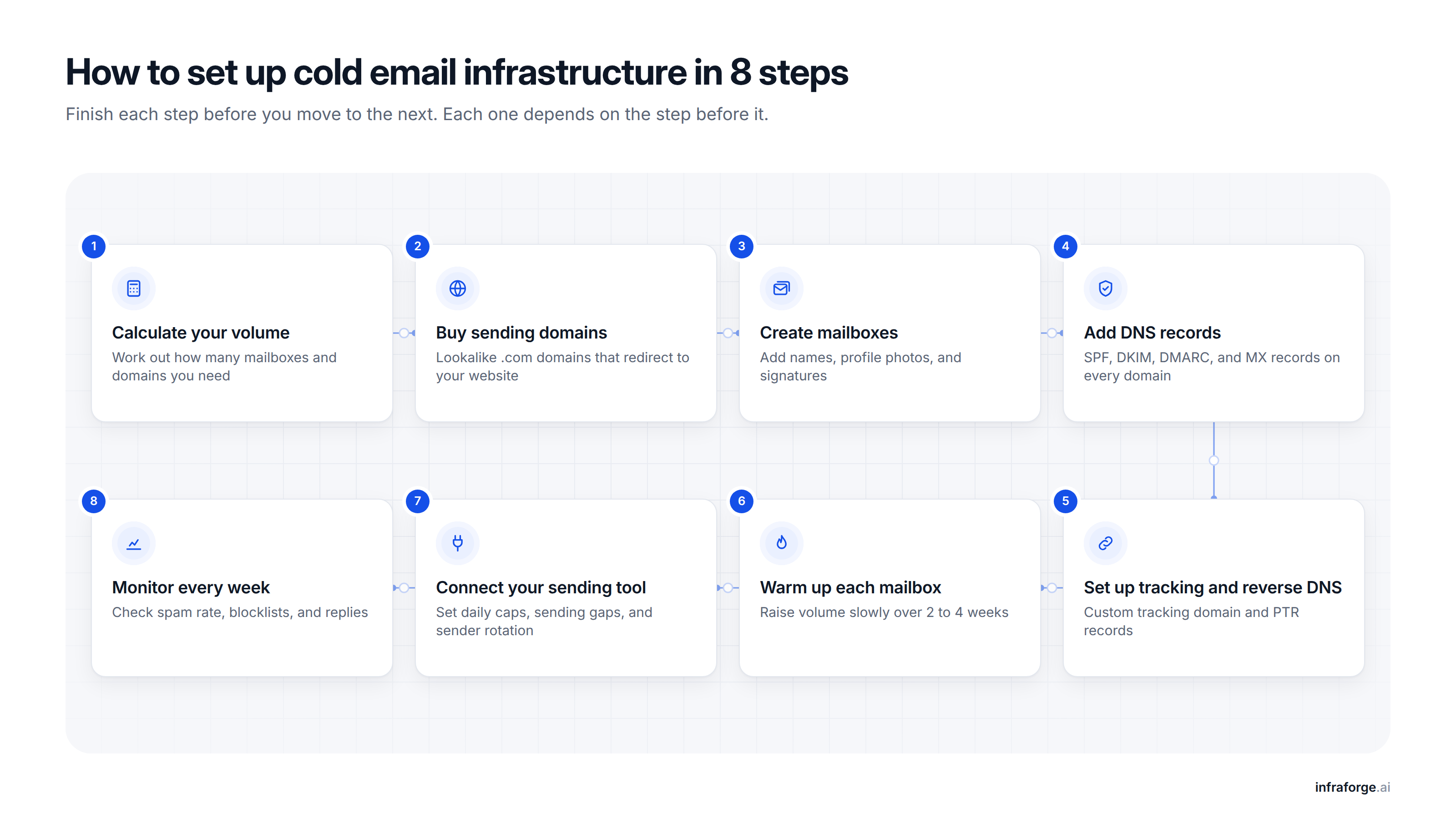
I start by calculating my monthly sending volume. I count each follow-up as a separate email because it uses part of the mailbox's daily sending capacity.
Next, I spread that volume across mailboxes. As a general guideline, I plan for around 30 cold emails per mailbox per day and three mailboxes per domain.
These figures reflect common cold email practices rather than official limits. Mailbox providers do not publish a universal safe sending limit for cold email.
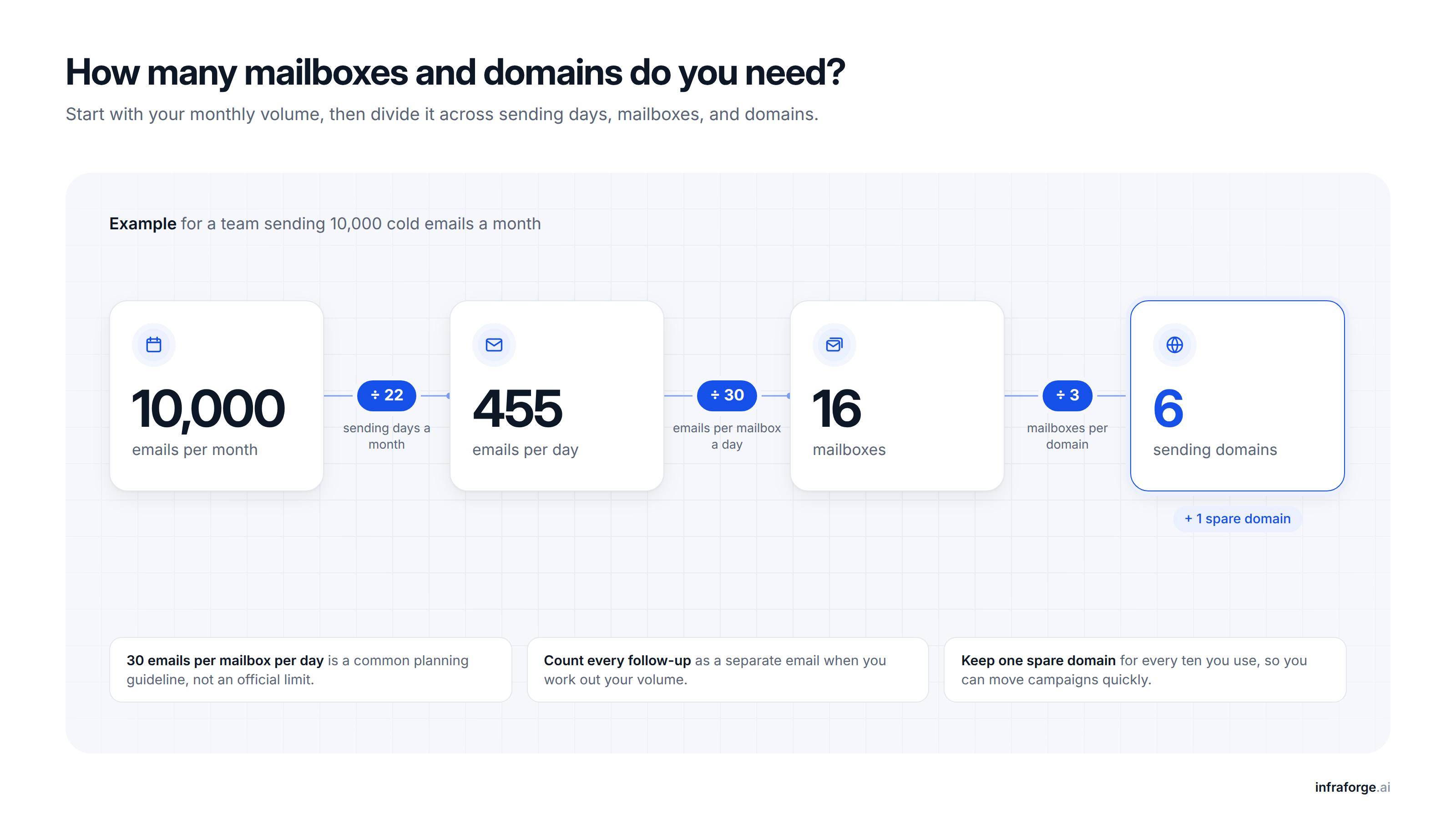
This table shows the math with 22 sending days a month:
Next, I check each provider's hard limits:
These limits are hard caps, not safe targets for cold email.
Microsoft says its business email service is not designed for bulk mailing. That is why I keep each mailbox far below these numbers.
Finally, I add one spare domain for every ten I plan to use. If a domain has problems, I can move its campaigns to a spare domain right away.
I buy domains that look close to my main brand. If my company uses acme.com, I pick names such as getacme.com or acmehq.com.
I follow three rules when I choose domain names:
Next, I point every new domain to my main website with a 301 redirect. A prospect who types in a sending domain then lands on my company's website. If I want to hide the redirect, I use domain masking.
Buying domains one at a time takes too long when you need many of them. I use Infraforge for the examples in this guide, and its bulk domain generator creates many domains in one click.
If you prefer to buy domains elsewhere, you can register them with a domain registrar and connect them to your infrastructure provider by updating their DNS settings.
I create 2 to 3 mailboxes on each domain. I use a person's name, such as [email protected] or [email protected]. I avoid role addresses such as sales@ or info@, because they look automated.
Before a mailbox sends anything, I set up three things:
Creating mailboxes by hand also takes time when you need many of them. Mailbox provisioning tools create mailboxes for many domains at once. Infraforge's mailbox auto-generator works this way, and I can then edit names and profiles in bulk.
Add these DNS records to each sending domain to authenticate your emails and help inbox providers verify your sender.
include:_spf.google.com, while Microsoft 365 uses include:spf.protection.outlook.com. Keep one SPF record per domain and stay within the 10 DNS lookup limit.p=none, review the reports, and move to stricter policies when your setup is ready.Once you've added the records, send a test email to Gmail, open Show original, and check that SPF, DKIM, and DMARC all show PASS.
For detailed instructions, follow this DNS setup guide.
If I track clicks, I add a custom tracking domain. I create a CNAME record such as track.getacme.com. It points to the tracking address my sending tool gives me.
My links then use my own domain. Without this record, my links use shared tracking domains that many other senders also use. Google says that sharing an IP address or domain with other senders can lower the reputation of everyone who uses it.
If I send from my own server or a dedicated IP, I also check reverse DNS. Gmail requires the reverse DNS name of a sending IP to point back to that same IP. Google Workspace and Microsoft 365 handle this part for me.
New mailboxes and new domains have no sending history, so I warm them up before I start cold email campaigns. Google's sender guidelines say to start with a low volume and increase it slowly. Google also says that steady volume matters most for new domains.
Here is the warmup schedule I use for a new mailbox. It is my own practice, not an official rule.
If Gmail starts to delay my emails, I stop raising volume for 24 hours. After that, Google suggests a daily increase of 25% to 100%, depending on the sender.
I keep warmup running after launch, and a warmup tool does this automatically. If you use Salesforge as your sending tool, it includes a warmup tool called Warmforge at no extra cost.
Warmforge gives each mailbox a Heat Score™, which is a mailbox health score. I wait until the score shows a mailbox is ready before I raise its cold volume.
If I cannot wait four weeks, I buy pre-warmed mailboxes. Some infrastructure providers sell mailboxes that finished warmup before delivery, and Infraforge is one of them. With these mailboxes, I can launch in the same week.
I connect each mailbox to my sending tool. I use OAuth for Google Workspace and Microsoft 365, or IMAP and SMTP details for other providers.
Infrastructure providers usually work with any sending tool. Infraforge, for example, connects natively to Salesforge and works with other tools too.
Then I set the same rules on every mailbox:
I add an opt-out line and my company's postal address to every email. The US CAN-SPAM Act requires both in commercial email.
Google asks bulk senders of marketing email to support one-click unsubscribe through an email header. A link in the email body alone does not meet that rule. For this reason, I turn on one-click unsubscribe in my sending tool whenever it offers it.
Some sending tools can also match each mailbox to your prospect's email provider. Salesforge calls this feature ESP matching and includes it in the Growth plan. It pairs my Google mailboxes with Google recipients and my Microsoft mailboxes with Microsoft recipients.
After launch, I track deliverability for every domain once a week. I look at three numbers:
If you used Google Postmaster Tools in the past, note one important change.
The current version of Google Postmaster Tools no longer shows domain or IP reputation scores. Google retired those dashboards and points senders to its Compliance Status and Spam Rate dashboards instead.
If a domain lands on a blocklist, I pause it and move its campaigns to a spare domain. I treat a flagged mailbox the same way and pause it before it hurts the rest of the domain.
Checking every mailbox by hand takes too long, so I also use monitoring alerts. Infraforge's real-time monitoring alerts me when a mailbox shows problems, and its deliverability monitoring page shows what it checks.
The table below compares 5 cold email infrastructure providers.
Prices come from each vendor's official pricing page and are current as of October 2026. Check each vendor's live pricing page before you commit, because prices change often.
The cost of cold email infrastructure depends on the number of domains and mailboxes you need. You may also need to pay for dedicated IPs, email warmup, and cold email software. Providers differ in the services they include and the fees they charge separately.
Each domain has a yearly registration fee. The total cost depends on the number of domains you register and the domain extension you choose. If you use multiple domains for cold email, include their renewal fees in your budget.
For example, Mailforge and Infraforge list .com domains at $14 per year, while Maildoso charges $15 per year.
Mailbox costs depend on the provider, mailbox type, and billing cycle. Providers may charge for each mailbox or sell mailbox slots in bundles. A mailbox slot gives you the capacity to create one mailbox, and unused slots may still incur a charge.
For example, Mailforge charges $3 per mailbox slot per month with monthly billing. Maildoso charges $75 per month for 30 mailboxes, which works out to $2.50 per mailbox. Mailforge also requires a minimum purchase of 10 mailbox slots, so factor that requirement into your budget.
A dedicated IP adds to your infrastructure costs when the provider charges for it separately. The price depends on the provider and the number of IPs you need. Check whether your plan already includes a dedicated IP before paying for an additional one.
For example, Infraforge charges $99 per dedicated IP per month with quarterly billing.
Email warmup may be included in your cold email software or infrastructure plan. If your plan does not include it, you may need a separate subscription. The cost usually depends on the number of mailboxes you want to warm up and your billing cycle.
For example, Warmforge charges $10 per mailbox slot per month with quarterly billing. Warming 10 mailbox slots would cost $100 per month at that rate. Annual billing lowers the price to $9 per mailbox slot per month.
Cold email software is another expense to consider if your infrastructure plan does not include it. These tools help you create campaigns, schedule follow-ups, and manage replies.
Pricing depends on the platform, sending limits, contact limits, and features you need. Platforms that include email warmup can save you the cost of a separate subscription. Check each plan's features and limits before deciding how much to budget.
Here is what the infrastructure costs at three sending volumes. Every amount in the table is a monthly cost.
The small team needs 8 mailboxes for 5,000 emails a month. I priced it at 10 mailboxes on 4 domains, because Mailforge and Infraforge sell a minimum of 10 mailbox slots.
When you compare providers, check how each one charges you. Providers charge in four common ways:
Before choosing a provider, work out your volume and your prospects' email providers. Then decide how much control you need over your IPs.
If your emails already land in spam, this cold email deliverability guide explains what to check first.
This isn't legal advice, so check your own obligations. This guide to GDPR and cold email explains the main rules in Europe.
A cold email program needs both. The infrastructure is what you send from, and the software decides who gets which email and when.
Good cold email infrastructure depends on three habits. Keep your domains separate, keep your DNS records correct, and grow your sending volume slowly.
If you send at volume or run campaigns for clients, I recommend Infraforge. Infraforge runs your mailboxes on dedicated IPs, so your reputation depends only on your own sending. It also sells pre-warmed mailboxes, so your campaigns can start sooner.
My last tip is to run two infrastructure types side by side. When I add Primeforge mailboxes next to Infraforge or Mailforge, I always have a mailbox that matches my prospect's email provider. All three run under one login, so I can move between them without migrating my domains.
You can create your Infraforge account and have your first domain and mailbox live in about 5 minutes.
There is no single best setup for every sender. The right choice depends on how many emails you send and which email providers your prospects use. Shared infrastructure works well for a first campaign, and dedicated IPs work well for agencies and high-volume senders. I combine two types, so I always have a backup if one has problems.
Divide your mailbox count by 2 or 3 to get your domain count. For 10,000 emails a month at 30 emails per mailbox per day, you need about 16 mailboxes. That works out to about 6 domains with 3 mailboxes each. I also keep one spare domain for every ten in use.
No, you can send cold email from SMTP mailboxes hosted on a cold email provider's servers. Google Workspace and Microsoft 365 mailboxes help when your prospects use the same provider, which senders call ESP matching. Google Workspace allows 2,000 messages per user per day, and Microsoft 365 allows 10,000 recipients per mailbox per day. These are technical limits, not safe targets for cold email.
The technical setup takes less than a day, but warmup takes two to four weeks. DNS changes can take up to 48 hours to work everywhere. Pre-warmed mailboxes let you skip most of the warmup wait.
Yes, every new mailbox needs warmup unless you buy it pre-warmed. A new mailbox has no sending history, and Google advises senders to start with a low volume and increase it slowly. I keep warmup running after launch too, so each mailbox keeps a steady sending pattern.
A small team sending 5,000 emails a month can run its infrastructure for about $30 to $50 a month. Among the providers I compared, mailboxes cost about $2.50 to $4.50 each per month. Domains cost about $14 to $15 a year each. A dedicated IP on Infraforge adds $99 a month, and you also need a sending tool.
No, you should keep cold email off your primary domain. If a campaign hurts its reputation, your invoices and team email can land in spam too. Yahoo also advises senders to keep different types of email on separate IPs or domains. Use separate sending domains that redirect to your main website.