
If you're sending hundreds or thousands of emails but getting few opens or replies, email deliverability issues could be the problem.
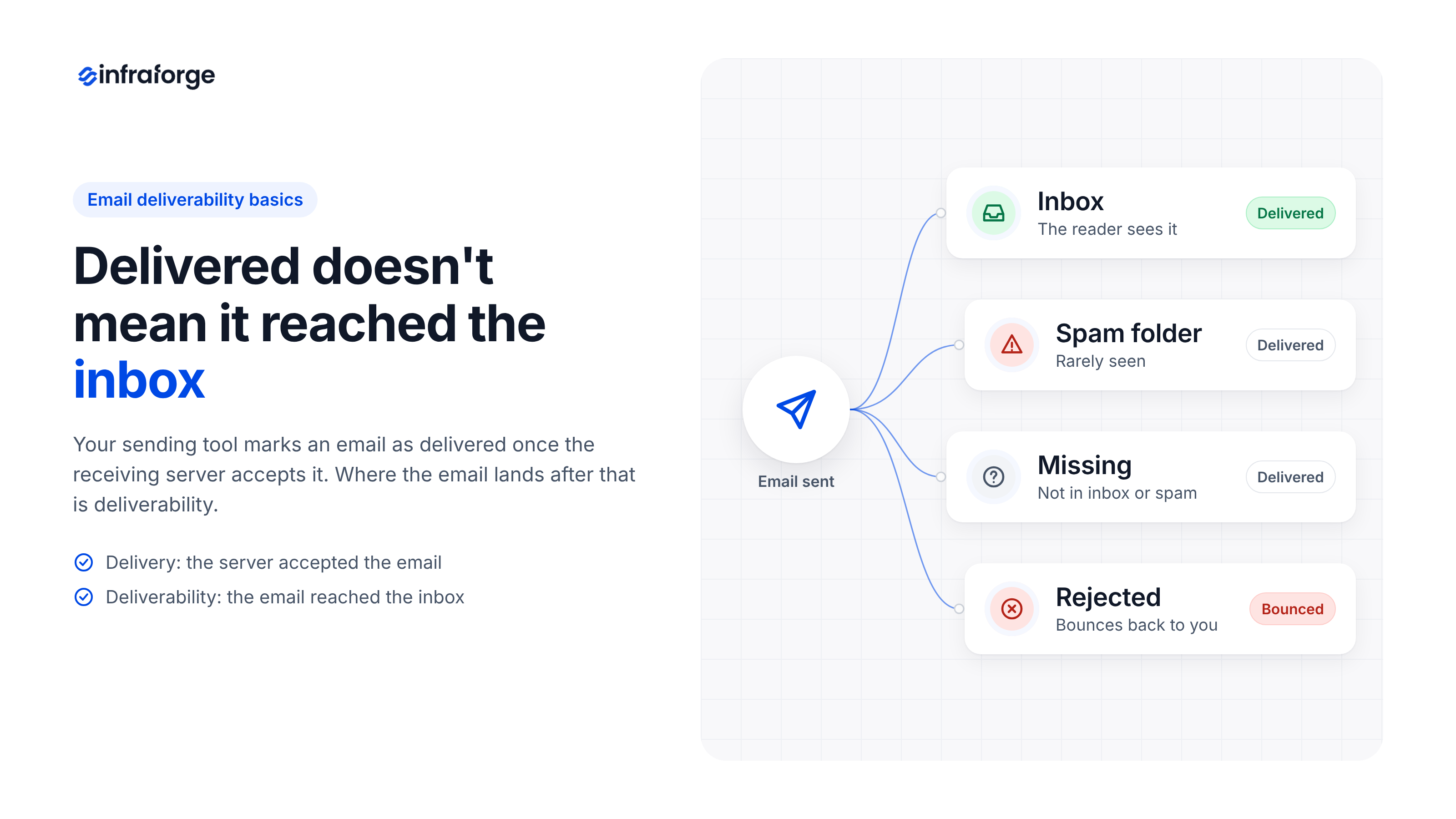
A sending tool may show an email as delivered, but that doesn't mean it reached the recipient's inbox. The message could still end up in spam.
A report from Validity published in 2026 shows how often this happens. According to the report, only 87.2% of emails reached the inbox on average in 2025.
That means about one in eight emails landed in spam or went missing instead.
Emails may land in spam when the sender has a poor reputation, authentication is misconfigured, or recipients mark messages as spam.
Below, I cover 10 common email deliverability issues, why they happen, and how to address them.
These are the main points from this guide:
An email deliverability issue occurs when an email fails to reach the recipient's inbox. It may bounce, land in spam, or end up in another folder.
Email delivery means the receiving server accepted the message, while email deliverability refers to whether it reaches the inbox. An email can show as delivered in your sending tool but still land in spam.
Bounces usually include error codes that help identify the problem. Spam placement is harder to detect, so inbox placement tests can help reveal where your emails land.
A few years ago, the sender rules from Gmail and Yahoo were mostly advice. Since 2024, they have become strict rules with clear penalties, and Microsoft added its own rules in 2025. These are the changes that matter for anyone who sends email at volume:
These changes make email authentication and compliance more important than ever. A misconfigured setup can lead to rejected emails, while the loss of reputation scores in Google Postmaster Tools means senders need other ways to monitor deliverability.
The 5,000-email threshold applies to messages sent to personal Gmail and Outlook.com accounts. Newsletter and product email senders should pay close attention to these requirements.
Cold emails sent to business accounts face different rules, but Google Workspace and Microsoft 365 still use authentication and sender reputation to filter messages. Following the same best practices can help cold emails reach the inbox.
This guide to Google's bulk sender guidelines explains each Gmail rule in detail.
I've ordered these issues from the ones that come up most often to the ones that come up least.
A hard bounce occurs when an email cannot be delivered because the recipient's address does not exist or is invalid. A few hard bounces are normal, but repeated failures can damage your sender reputation. Mailbox providers may start treating you as a sender who uses purchased or scraped email lists.
The reasons for bounces often depend on the type of email you send. Newsletter campaigns may get more bounces when you email subscribers who have been inactive for months. Cold email campaigns often run into the same problem when contact data is outdated or unverified.
As a general guideline, deliverability experts aim to keep the total bounce rate below 2% and the hard bounce rate below 1%. If a campaign exceeds these levels, pause it and check where the invalid addresses came from before sending again.
Old email lists can also contain spam traps. These are email addresses used by mailbox providers and blocklist operators to identify senders with poor list practices. Some addresses become recycled spam traps after their original owners abandon them, making outdated lists a deliverability risk.
To keep bounces low, I take these steps:
This guide to soft vs hard bounces explains how the two types differ and how each one affects your reputation.
Authentication is how a receiving server checks that you're allowed to send email from your domain. It depends on three DNS records.
SPF lists the servers that can send email for your domain. DKIM adds a digital signature that shows nobody changed the email on the way.
DMARC is the third record. It tells the receiving server what to do when SPF or DKIM fails, and it checks that the domains match. DMARC passes when the domain in your From address matches the domain that SPF or DKIM checked.
A missing record is easy to spot because the bounce code tells you about it. A mismatch is harder to see.
It often happens when a newsletter platform or sending tool signs emails with its own domain instead of yours. In that case, DMARC fails even when every record is in place.
Two smaller problems are easy to miss as well. SPF can make only 10 DNS lookups, so a record that includes too many services fails with a permanent error. Gmail also needs a DKIM key of at least 1024 bits and recommends 2048 bits.
To fix authentication problems, I take these steps:
Setting up these records by hand across many domains takes time, and one typo can break them. For cold email, where one sender often runs many domains, I prefer automatic setup.
Infraforge adds SPF, DKIM, and DMARC records to every domain you connect. It also sets up a custom tracking domain and lets you update records on many domains at once.
If you prefer to set up the records yourself, this list of common SPF record errors and fixes explains the usual mistakes.
On a shared IP, many senders send email from the same IP address. This is common with email service providers on lower-priced plans and with shared mailbox providers. I compare it to living in an apartment building, where one bad neighbor can give the whole building a bad name.
This problem is hard to spot because nothing changes on your side. Inbox placement drops, but authentication still passes and the list is still clean.
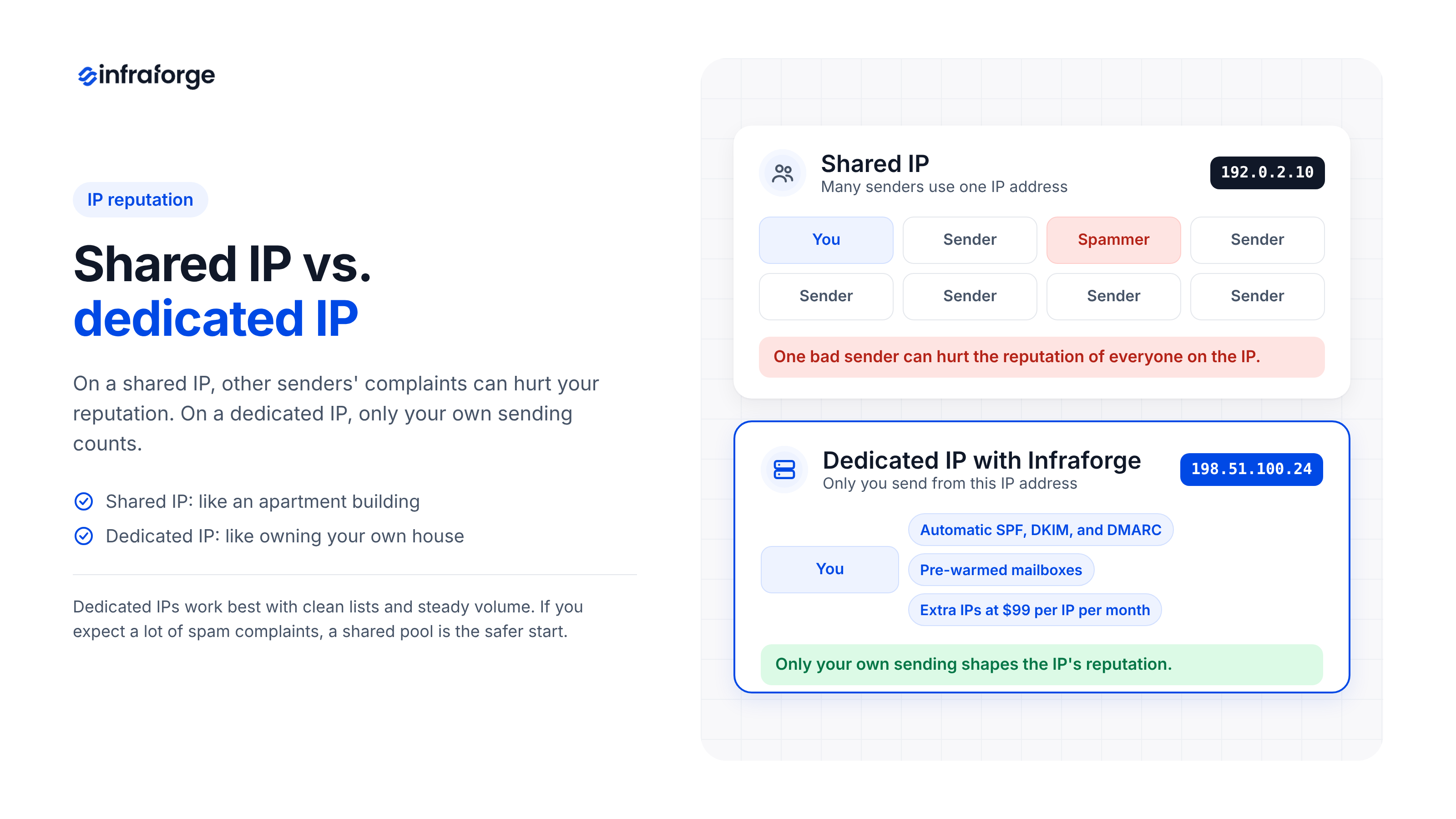
A dedicated IP is more like owning your own house. Its reputation depends only on how you send, so good habits make it stronger over time. At the same time, your mistakes hurt you directly, because no other senders are there to soften the impact.
A dedicated IP also needs steady volume to build a reputation. Small senders who send a few thousand emails a month often do better on a good shared IP.
For cold email volume, Infraforge recommends dedicated IPs for senders who follow best practices and want full control. If you expect a lot of spam complaints, Infraforge's own advice is to start with a shared IP pool like Mailforge instead.
To protect my IP reputation, I take these steps:
Infraforge supports that last step with multi-IP provisioning, which lets you add extra IPs for $99 per IP per month. This short video explains the difference between shared and dedicated IP infrastructure:
This Infraforge vs Mailforge page compares the two options side by side.
Even with perfect authentication, spam complaints can push your emails out of the inbox. Mailbox providers count a complaint every time someone clicks the "Report spam" button on one of your emails.
Google asks senders to keep their spam complaint rate below 0.1% and never let it reach 0.3%. That means fewer than one complaint for every 1,000 emails. Cold email runs close to this limit by nature, because the people you email didn't ask to hear from you.
Complaints usually come from emails that people didn't expect or don't find useful. With marketing emails, that often means sending too often or emailing people who forgot they signed up. With cold email, it usually means poor targeting.
If you send marketing emails in bulk, Google requires a one-click unsubscribe link and asks you to process unsubscribes within 48 hours. For one-to-one cold emails, I add a simple opt-out line instead, because it gives people an easier option than the spam button.
To keep complaints low, I take these steps:
Reputation matters more than content. Still, the wording and links in an email can push it into spam when other signals are weak.
Tracking links are the first thing I check. When you turn on open or click tracking, your sending tool routes your links through its own domain. Other customers of that tool share the same domain, so their spam can hurt your links.
A custom tracking domain solves this, because your links then go through a domain that only you use.
Next, I look at the email itself. For marketing emails, I check that the HTML isn't broken and that the email has a plain-text version. Emails made of one big image with little text also tend to land in spam.
Cold emails need a lighter touch. A first cold email with several links, large images, or attachments looks like a marketing email. That's why I keep it short and simple.
Sending the same cold email text to thousands of people is another risk, because it creates a pattern that spam filters can detect. Spintax, which swaps in different words for each email, helps vary the text. Details about each prospect's company help too.
For any type of email, subject lines in capital letters and misleading subject lines tend to trigger spam filters. The sender name matters as well. A From name that looks like an ad makes people trust the email less, while a person's or brand's name looks natural.
To keep content safe, I take these steps:
If you write cold emails, these cold email subject line best practices explain what to write in your subject lines and what to avoid.
Mailbox providers watch how your sending changes from day to day. If a domain sent 200 emails yesterday and 20,000 today, it looks like something went wrong, even when authentication is perfect.
Gmail responds to this with a 421 4.7.28 error. The error means Gmail noticed an unusual amount of unwanted email from your IP or domain, so it's delaying your emails for now. If you keep sending at the same pace, the delay can turn into lasting damage to your reputation.
For marketing emails, this often happens when you email a whole list after weeks of silence. For cold email, it happens when a single mailbox sends far more than usual. The safer way to send more cold email is to add more mailboxes and domains.
The Infraforge pricing calculator recommends 30 cold emails per mailbox per day, with a maximum of 100. It also recommends 2 to 3 mailboxes per domain.
To keep volume safe, I take these steps:
This guide to how many mailboxes you need for outreach explains how to work out your numbers.
A blocklist is a public list of domains and IP addresses linked to spam. Hundreds of these lists exist, but only a few have a big effect on deliverability.
Spamhaus matters the most, because major mailbox providers respect its listings. Company email filters often use the Proofpoint, Barracuda, and Invaluement lists. I watch those as well, especially when I email businesses.
Gmail, Outlook.com, and Yahoo rely more on their own filters than on public blocklists. That's why a listing can block your emails at some companies while other providers keep accepting them.
A domain usually ends up on a blocklist after it hits spam traps or gets a spike in complaints. A hacked account or bots that fill in your signup form can also get you listed.
To handle a blocklist, I take these steps:
If your IP reputation is already damaged, this guide on how to fix IP reputation issues explains how to repair it.
A brand-new domain or IP address has no reputation yet. Mailbox providers are careful with senders they don't know, which is why the first emails from a new domain often go to spam.
Warmup solves this by building a sending history slowly. For marketing emails, warmup means sending to your most engaged subscribers first and adding the rest of the list over a few weeks.
For cold email, warmup works differently. The mailbox trades a small number of emails with other inboxes in a warmup network, and those inboxes open and reply to them. Over about two weeks, the daily volume rises until the mailbox looks like a normal, active sender.
Skipping warmup to meet a launch date is one of the fastest ways I know to burn a domain. A burned domain has a reputation so low that its emails keep landing in spam.
To warm up new domains, I take these steps:
For cold email, pre-warmed mailboxes are a good shortcut when you can't wait two weeks. Infraforge delivers them with warmup and DNS setup already done, so a campaign can start on the first day.
If you prefer to warm up domains yourself, these best practices for warming new domains explain how to raise volume step by step.
A PTR record, also called reverse DNS, connects your sending IP address to a hostname. Gmail checks that this hostname points back to the same IP address. If it doesn't, Gmail blocks the email with a 550 5.7.25 error.
Gmail also requires every sender to use TLS, which encrypts the connection between your server and Gmail's server. Without it, your email fails Gmail's rules before Gmail even looks at your content or reputation.
This problem is more common on self-hosted servers and cheap SMTP services. If you send through an email service provider or a shared mailbox provider, the provider manages the PTR record for you. On a dedicated IP, you manage it yourself.
To fix it, I take these steps:
This reverse DNS setup guide explains each step in detail.
The main company domain sends the emails a business can't afford to lose. These include invoices, password resets, and support replies. When risky email goes out from that same domain, a bad campaign can drag those important emails into spam too.
For marketing and product emails, the common fix is to use separate subdomains. For example, news.brand.com can send newsletters while mail.brand.com sends receipts. Mailbox providers track reputation for each subdomain, so a weak newsletter doesn't slow down your password resets.
For cold email, I go a step further and use separate domains. Cold email carries more complaint risk, and subdomains can still share part of the main domain's reputation.
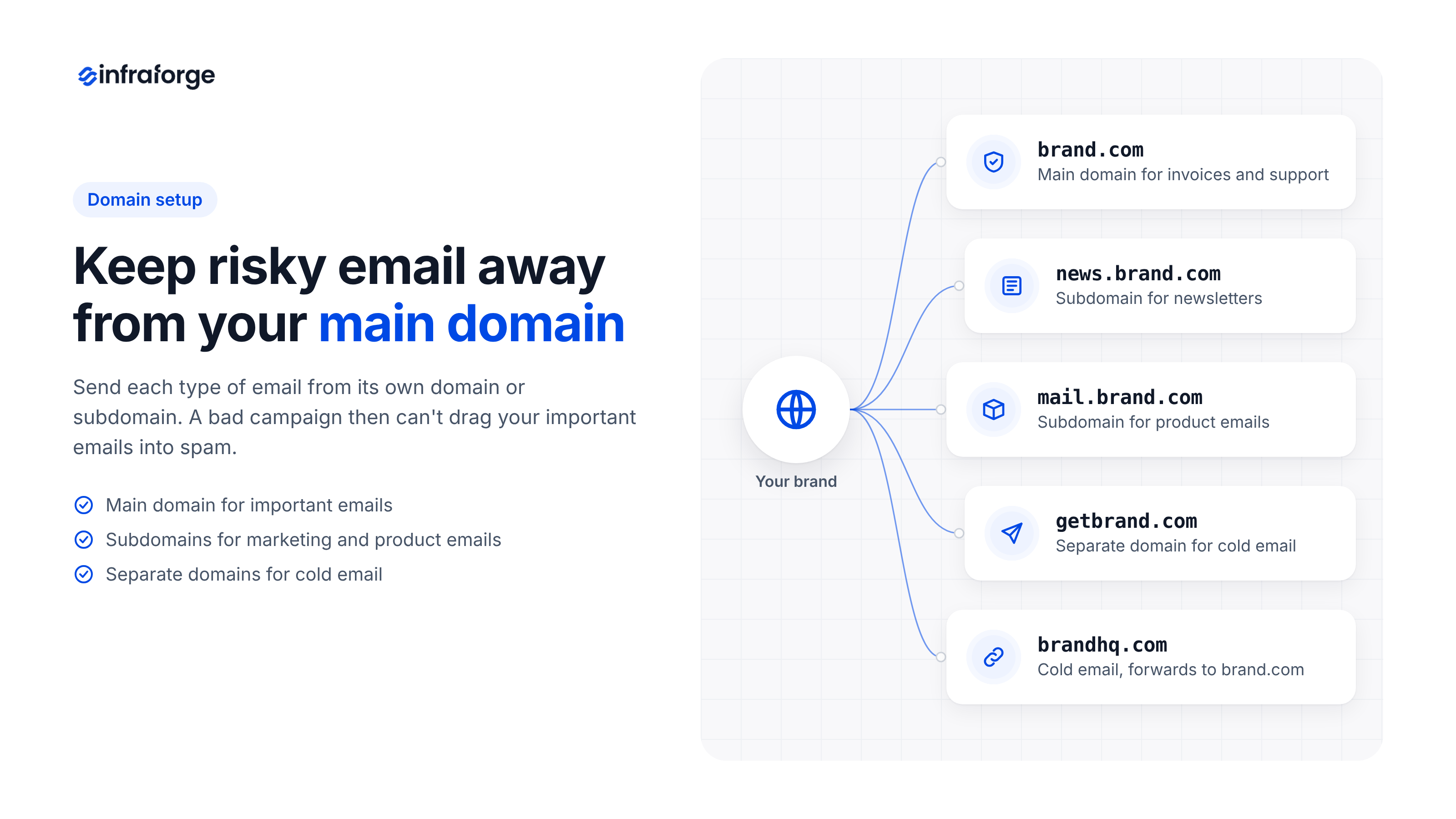
So I buy domains that look similar to the main brand and send cold emails from them, with each one forwarding to the main website.
To keep your main domain safe, I take these steps:
Infraforge offers SSL and domain masking as an add-on for $2 per domain per month.
If you're planning cold email domains for a larger operation, this guide to cold email infrastructure setup explains how to organize them.
Since Gmail and Microsoft started enforcing their rules, bounce codes have become one of the fastest ways to find a problem. This table lists the codes tied to their sender rules and what to check for each one.
SMTP codes starting with 4 indicate temporary delivery failures, so the server may accept the email if you try again later.
Codes starting with 5 indicate permanent failures, which usually require you to address the underlying problem before sending again. For more details, see this guide to 550 5.7.1 errors.
Fixing a burned domain can take weeks, but spotting a problem early takes a few minutes each week. I use three sources of data for this.
Google Postmaster Tools is a free dashboard that shows how Gmail sees your domain. The current version no longer shows reputation scores. It still shows your spam rate, and its Compliance status page tells you if you pass each of Gmail's sender rules.
Around June 2026, Google added a Deliverability analysis section with a short summary and a suggested next step. Postmaster only shows data after a domain sends enough email to Gmail, though. A new or low-volume domain may show nothing at first, so I don't rely on it alone.
Microsoft inboxes are often the hardest of the big providers to reach, so I watch them on their own. Microsoft's free Smart Network Data Services (SNDS) tool shows data about your IP addresses for Outlook.com traffic. In June 2026, Microsoft moved SNDS to a new portal, so older bookmarks may need updating.
Companies on Microsoft 365 can also block senders on their own, and a removal from Microsoft's own block list won't clear those blocks. So if one company keeps rejecting your emails while others accept them, check that company's filter first.
If you send cold email from Microsoft mailboxes, this guide to Microsoft 365 cold email limits explains what can get your account suspended.
An inbox placement test, also called a seed test, sends your email to test inboxes at different providers. It then shows which emails reached the inbox and which went to spam. I run one before every new campaign and again after I change the copy, domains, or volume.
Each week, I also review bounce rates and engagement for every sending domain. For marketing emails, I watch opens and clicks. For cold email, I watch replies, because a sudden drop in replies on one domain is often the first sign of trouble.
In the same weekly review, I check every domain and IP against the main blocklists. This guide on how to do an email deliverability check in 7 steps explains the full process.
Marketing and product emails usually go through an email service provider, which handles most of the sending setup for you. Cold email works differently, because you send from your own mailboxes and domains. For cold email senders, the company that hosts those mailboxes affects many of the issues above.
The mailbox provider controls the PTR record and how DNS records are set up. It also decides which other senders share your IP addresses. This table compares three common options for cold email:
Prices are current as of October 2026. Infraforge charges for domains separately, starting at $14 per year for a .com domain.
Infraforge is private email infrastructure for cold email, with dedicated IP addresses. It sets up DNS records automatically on every domain, so authentication is in place before you send your first email.
For larger setups, multi-IP provisioning keeps each campaign's reputation separate. Pre-warmed domains and mailboxes let you start sending on the first day. Workspaces keep domains and mailboxes organized by client, and Masterbox shows emails from every mailbox in a workspace in one place.
Developers can create and manage domains and mailboxes through the Infraforge API. Infraforge connects directly to Salesforge, and it also works with other sending tools.
Infraforge doesn't offer a free trial, because you need to buy domains and mailboxes before you can send. The app is free to explore after signup, though. The smallest purchase is 10 mailbox slots, so a small sender may pay for slots they don't use yet.
A dedicated IP also has no shared pool to absorb mistakes. If you expect a lot of spam complaints, Mailforge's shared IP pool is a safer place to start.
Infraforge is a good fit for high-volume cold email senders, agencies that manage many clients, and experienced senders who want full control. It's not the right choice for newsletters or product emails, or for a first-time cold emailer who is still testing lists.
Google Workspace and Microsoft 365 mailboxes have one big advantage for cold email, which is ESP matching. ESP matching means sending from the same email provider your prospect uses, such as Google to Google. If most of your list uses one provider, this can help your emails reach the inbox.
These mailboxes have downsides at scale, though. Each mailbox is a paid user on a business plan, and you have to add DNS records by hand for every new domain.
Both providers also limit unsolicited bulk email and can suspend accounts that break their rules. And because the sending IPs belong to Google or Microsoft, you can't control their reputation.
If you want Google or Microsoft mailboxes without the manual setup, Primeforge provides them on US IPs. I'd also consider using Primeforge and Infraforge together, so your emails go out through more than one provider. If one provider has a problem, the other keeps sending.
This comparison of Google Workspace alternatives for high-volume cold sending explains the other options.
Infraforge sets up private email infrastructure with dedicated IPs, automatic DNS records, and pre-warmed mailboxes in minutes. If you want to try it, start with Infraforge.
If your inbox placement has already dropped, the order of your fixes matters. This is the order I follow:
If a cold email domain still fails after a full recovery cycle, I retire it and move on. A main brand domain is different, because you can't replace it. In that case, I keep sending only to engaged contacts until the reputation recovers.
This list of the best email deliverability tools for cold outreach compares tools that can automate it.
If you're dealing with email deliverability issues right now, start with your bounce codes. They point to the broken rule faster than any tool. After that, check your authentication and your list, and then look at your sending volume.
If you're setting up a new sending program, start with the setup instead. Keep marketing emails and product emails on separate subdomains, and keep cold email on separate domains. That one decision prevents several issues on this list before they start.
If you're setting up cold email, start with Infraforge to get private infrastructure with dedicated IPs and automatic DNS in minutes.
The issues that come up most often are high bounce rates from poor lists and broken authentication. After those come poor sender reputation and spam complaints. Spammy content, sudden jumps in volume, and blocklists follow close behind.
An inbox placement test is the clearest way to find out. It sends your email to test inboxes at different providers and shows where each one landed. Sending tools count emails in spam as delivered, so a sudden drop in opens or replies is the other warning sign to watch.
Emails usually go to spam in Gmail because of failed authentication, a high complaint rate, or low engagement. Start with Google Postmaster Tools to check your spam rate and compliance status. Then run an inbox placement test to see if the problem is your domain or your content.
A good inbox placement rate is about 90% or higher. Microsoft inboxes usually score lower than Gmail, so I track placement for each provider separately. If one domain falls well below the others, I look into it first.
Gmail sends a 550 5.7.26 error when an email isn't authenticated or fails the sender's DMARC policy. To fix it, check that SPF and DKIM pass on a test email. Then make sure the domain in your From address matches the domain SPF or DKIM checked.
Partly, because the volume limits in these rules apply to personal accounts like gmail.com and outlook.com. Business inboxes on Google Workspace and Microsoft 365 use their own filters, and those filters also look at authentication and complaints. That's why I follow the same rules for every cold email.